Developers
API References
Data Subject Request API
Data Subject Request API Version 1 and 2
Data Subject Request API Version 3
Platform API
Key Management
Platform API Overview
Accounts
Apps
Audiences
Calculated Attributes
Data Points
Feeds
Field Transformations
Services
Users
Workspaces
Warehouse Sync API
Warehouse Sync API Overview
Warehouse Sync API Tutorial
Warehouse Sync API Reference
Data Mapping
Warehouse Sync SQL Reference
Warehouse Sync Troubleshooting Guide
ComposeID
Warehouse Sync API v2 Migration
Audit Logs API
Bulk Profile Deletion API Reference
Calculated Attributes Seeding API
Custom Access Roles API
Data Planning API
Household Reach API Reference
Pixel Service
Profile API
Events API
mParticle JSON Schema Reference
IDSync
Client SDKs
AMP
AMP SDK
Android
Initialization
Configuration
Network Security Configuration
Event Tracking
User Attributes
IDSync
Screen Events
Commerce Events
Location Tracking
Media
Kits
Application State and Session Management
Data Privacy Controls
Error Tracking
Opt Out
Push Notifications
WebView Integration
Logger
Preventing Blocked HTTP Traffic with CNAME
Workspace Switching
Linting Data Plans
Troubleshooting the Android SDK
API Reference
Upgrade to Version 5
Upgrade to Version 6
Cordova
Cordova Plugin
Identity
Direct Url Routing
Direct URL Routing FAQ
Web
Android
iOS
iOS
Workspace Switching
Initialization
Configuration
Event Tracking
User Attributes
IDSync
Screen Tracking
Commerce Events
Location Tracking
Media
Kits
Application State and Session Management
Data Privacy Controls
Error Tracking
Opt Out
Push Notifications
Webview Integration
Upload Frequency
Preventing Blocked HTTP Traffic with CNAME
Linting Data Plans
Troubleshooting iOS SDK
Social Networks
iOS 14 Guide
iOS 15 FAQ
iOS 16 FAQ
iOS 17 FAQ
iOS 18 FAQ
API Reference
Upgrade to Version 7
Upgrade to Version 9
.NET MAUI
Getting Started
Identity
Unity
Upload Frequency
Getting Started
Opt Out
Initialize the SDK
Event Tracking
Commerce Tracking
Error Tracking
Screen Tracking
Identity
Location Tracking
Session Management
React Native
Getting Started
Identity
Web
Initialization
Configuration
Content Security Policy
Event Tracking
User Attributes
IDSync
Page View Tracking
Commerce Events
Location Tracking
Media
Kits
Application State and Session Management
Data Privacy Controls
Error Tracking
Opt Out
Custom Logger
Persistence
Native Web Views
Self-Hosting
Multiple Instances
Web SDK via Google Tag Manager
Preventing Blocked HTTP Traffic with CNAME
Facebook Instant Articles
Troubleshooting the Web SDK
Browser Compatibility
Linting Data Plans
API Reference
Upgrade to Version 3 of the SDK
Alexa
Server SDKs
Node SDK
Go SDK
Python SDK
Ruby SDK
Java SDK
Quickstart
Android
Overview
Step 1. Create an input
Step 2. Verify your input
Step 3. Set up your output
Step 4. Create a connection
Step 5. Verify your connection
Step 6. Track events
Step 7. Track user data
Step 8. Create a data plan
Step 9. Test your local app
iOS Quick Start
Overview
Step 1. Create an input
Step 2. Verify your input
Step 3. Set up your output
Step 4. Create a connection
Step 5. Verify your connection
Step 6. Track events
Step 7. Track user data
Step 8. Create a data plan
Python Quick Start
Step 1. Create an input
Step 2. Create an output
Step 3. Verify output
Guides
Partners
Introduction
Outbound Integrations
Outbound Integrations
Firehose Java SDK
Inbound Integrations
Compose ID
Data Hosting Locations
Glossary
Migrate from Segment to mParticle
Migrate from Segment to mParticle
Migrate from Segment to Client-side mParticle
Migrate from Segment to Server-side mParticle
Segment-to-mParticle Migration Reference
Rules Developer Guide
API Credential Management
The Developer's Guided Journey to mParticle
Guides
Platform Overview
Introduction
Navigating mParticle
The Overview Map
Getting Started
Create an Input
Start capturing data
Connect an Event Output
Create an Audience
Connect an Audience Output
Transform and Enhance Your Data
mParticle Agent
Overview
Explore Your Data
Build Audiences
Create Predictions
Data and Privacy
mParticle Agent FAQ
Oversight
System Alerts
Data Platform
Trends
Setup
Connections
Feeds
Import Data with CSV Files
Import Data with CSV Files
CSV File Reference
SFTP Credentials
Live Stream
Data Catalog
Rules
Plans
Filters
Event Forwarding
Event Match Quality
Data Retention
Tiered Events
Blocked Data Backfill Guide
Data Warehouse
Composable Audiences
Warehouse Setup Overview
Customer 360
Overview
User Profiles
Overview
User Profiles
Identity Dashboard
Identity Resolution Log
Household Reach
Calculated Attributes
Calculated Attributes Overview
Using Calculated Attributes
Create with AI Assistance
Calculated Attributes Reference
Predictions
Predictions Overview
What's Changed in the New Predictions UI
View and Manage Predictions
Predict Future Behavior
Future Behavior Predictions Overview
Create Future Behavior Prediction
Manage Future Behavior Predictions
Create an Audience with Future Behavior Predictions
Analytics
Introduction
Core Analytics (Beta)
Analytics Free Trial
Setup
Sync and Activate Analytics User Segments in mParticle
User Segment Activation
Welcome Page Announcements
Settings
Project Settings
Roles and Teammates
Organization Settings
Global Project Filters
Portfolio Analytics
Analytics Data Manager
Analytics Data Manager Overview
Events
Event Properties
User Properties
Revenue Mapping
Export Data
UTM Guide
Analyses
Analyses Introduction
Segmentation: Basics
Getting Started
Visualization Options
For Clauses
Date Range and Time Settings
Calculator
Numerical Settings
Segmentation: Advanced
Assisted Analysis
Properties Explorer
Frequency in Segmentation
Trends in Segmentation
Did [not] Perform Clauses
Cumulative vs. Non-Cumulative Analysis in Segmentation
Total Count of vs. Users Who Performed
Save Your Segmentation Analysis
Export Results in Segmentation
Explore Users from Segmentation
Funnels: Basics
Getting Started with Funnels
Group By Settings
Conversion Window
Tracking Properties
Date Range and Time Settings
Visualization Options
Interpreting a Funnel Analysis
Funnels: Advanced
Group By
Filters
Conversion over Time
Conversion Order
Trends
Funnel Direction
Multi-path Funnels
Analyze as Cohort from Funnel
Save a Funnel Analysis
Explore Users from a Funnel
Export Results from a Funnel
Saved Analyses
Manage Analyses in Dashboards
Query Builder
Data Dictionary
Query Builder Overview
Modify Filters With And/Or Clauses
Query-time Sampling
Query Notes
Filter Where Clauses
Event vs. User Properties
Group By Clauses
Annotations
Cross-tool Compatibility
Apply All for Filter Where Clauses
Date Range and Time Settings Overview
User Attributes at Event Time
Understanding the Screen View Event
User Aliasing
Dashboards
Dashboards––Getting Started
Manage Dashboards
Dashboard Filters
Organize Dashboards
Scheduled Reports
Favorites
Time and Interval Settings in Dashboards
Query Notes in Dashboards
Analytics Resources
The Demo Environment
Keyboard Shortcuts
User Segments
Tutorials
Analytics for Marketers
Analytics for Product Managers
Compare Conversion Across Acquisition Sources
Analyze Product Feature Usage
Identify Points of User Friction
Time-based Subscription Analysis
Dashboard Tips and Tricks
Understand Product Stickiness
Optimize User Flow with A/B Testing
Analytics (Deprecated)
Identity Providers
Single Sign-On (SSO)
Setup Examples
Introduction
Developer Docs
Introduction
Integrations
Introduction
Rudderstack
Google Tag Manager
Segment
Data Warehouses and Data Lakes
Advanced Data Warehouse Settings
AWS Kinesis (Snowplow)
AWS Redshift (Define Your Own Schema)
AWS S3 (Snowplow Schema)
AWS S3 Integration (Define Your Own Schema)
BigQuery (Snowplow Schema)
BigQuery Firebase Schema
BigQuery (Define Your Own Schema)
GCP BigQuery Export
Snowflake (Snowplow Schema)
Snowplow Schema Overview
Snowflake (Define Your Own Schema)
Developer Basics
Aliasing
Audiences
Audiences Overview
Create an Audience
Connect an Audience
Manage Audiences
Audience Insights
Audience Sharing
Match Boost
Inclusive & Exclusive Audiences (Early Access)
Inclusive & Exclusive Audiences Overview
Using Logic Blocks in Audiences
Combining Inclusive and Exclusive Audiences
Inclusive & Exclusive Audiences FAQ
Audience Expansion
Predictive Audiences
Predictive Audiences Overview
Using Predictive Audiences
Composable Audiences
Composable Audiences Overview
User Guide
User Guide Overview
Audience Setup
Frequently Asked Questions
Troubleshooting mParticle
Default Service Limits
Glossary
Integrations
Aarki
Audience
24i
Event
ABTasty
Audience
Actable
Feed
AdChemix
Event
Adobe Audience Manager
Audience
Adobe Marketing Cloud
Cookie Sync
Server-to-Server Events
Platform SDK Events
Adobe Campaign Manager
Audience
Adobe Experience Platform
Event
Adobe Target
Audience
AdPredictive
Feed
AgilOne
Event
AdMedia
Audience
Algolia
Event
Amazon Redshift
Data Warehouse
Amazon Kinesis
Event
Amazon SNS
Event
Amobee
Audience
Amazon SQS
Event
Anodot
Event
Antavo
Feed
Apptentive
Event
Apteligent
Event
Apptimize
Event
Awin
Event
Microsoft Azure Blob Storage
Event
Bidease
Audience
Bluecore
Event
Bing Ads
Event
Bluedot
Feed
Branch S2S Event
Event
Bugsnag
Event
Cadent
Audience
Census
Feed
Conversant
Event
comScore
Event
Crossing Minds
Event
Custom Feed
Custom Feed
Databricks
Data Warehouse
Didomi
Event
Datadog
Event
Eagle Eye
Audience
Emarsys
Audience
Edge226
Audience
Epsilon
Event
Everflow
Audience
Google Analytics for Firebase
Event
Flurry
Event
Facebook Offline Conversions
Event
ForeSee
Event
Flybits
Event
FreeWheel Data Suite
Audience
Friendbuy
Event
Google Ad Manager
Audience
Google Analytics 4
Event
Google Analytics
Event
Google BigQuery
Audience
Data Warehouse
Google Enhanced Conversions
Event
Google Marketing Platform
Cookie Sync
Audience
Event
Google Marketing Platform Offline Conversions
Event
Google Pub/Sub
Event
Google Tag Manager
Event
Heap
Event
Herow
Feed
Hightouch
Feed
Hyperlocology
Event
Ibotta
Event
InMarket
Audience
ID5
Kit
Impact
Event
Intercom
Event
Inspectlet
Event
ironSource
Audience
Kafka
Event
Kissmetrics
Event
Kubit
Event
LaunchDarkly
Feed
LifeStreet
Audience
LiveLike
Event
MadHive
Audience
Localytics
Event
Liveramp
Audience
mAdme Technologies
Event
MediaMath
Audience
Marigold
Audience
Mediasmart
Audience
Microsoft Ads
Microsoft Ads Audience Integration
Microsoft Azure Event Hubs
Event
Mintegral
Audience
Monetate
Event
Movable Ink
Event
Movable Ink - V2
Event
Multiplied
Event
Nami ML
Feed
Nanigans
Event
NCR Aloha
Event
Neura
Event
OneTrust
Event
Oracle BlueKai
Event
Paytronix
Feed
Persona.ly
Audience
Personify XP
Event
Plarin
Event
Primer
Event
Quantcast
Event
Qualtrics
Event
Rakuten
Event
Regal
Event
RevenueCat
Feed
Reveal Mobile
Event
Scalarr
Event
SFTP
Audience
Shopify
Custom Pixel
Feed
SimpleReach
Event
Singular-DEPRECATED
Event
Skyhook
Event
Smadex
Audience
Slack
Event
SmarterHQ
Event
Snapchat Conversions
Event
Snowflake
Audience
Data Warehouse
Snowplow
Event
Splunk MINT
Event
Spotify
Event
StartApp
Audience
Talon.One
Audience
Event
Feed
Loyalty Feed
Tapad
Audience
Taplytics
Event
Tapjoy
Audience
Taptica
Audience
Teak
Audience
The Trade Desk
Audience
Cookie Sync
Event
Ticketure
Feed
Triton Digital
Audience
TUNE
Event
Vibe
Audience
Valid
Event
Vkontakte
Audience
Vungle
Audience
Webhook
Event
Webtrends
Event
White Label Loyalty
Event
Wootric
Event
Xandr
Audience
Cookie Sync
Yahoo (formerly Verizon Media)
Audience
Cookie Sync
YouAppi
Audience
Yotpo
Feed
Salesforce Mobile Push
Event
Household Reach
Household Reach expands an audience to include people who belong to the same household as your qualifying users. You define what “same household” means by either having mParticle figure it out automatically using an automated household definition, or specifying a shared household identifying attribute yourself in a manual household definition (manual household definitions work the same way as the former Group Identity feature.)
Use Household Reach when you want to:
- Reach more people in the same household without changing who you’re targeting.
- Include everyone in a household when the purchase decision is likely shared, like family plans and subscriptions.
- Suppress an entire household when one member opts out.
How Household Reach works
When Household Reach is enabled on an audience connection, mParticle includes both the users who directly qualify and the other members of their households in delivery to that connected output.
Household membership is based on a household definition that tells mParticle how to group users together. You can create either automated or manual household definitions:
- Automated: mParticle uses a trusted third-party data provider to identify household relationships across your existing users automatically.
- Manual: You choose a user attribute that acts as the household identifier. Any profiles that share the same value for that attribute are grouped into the same household. For example, if you use
account_idas the identifier, all profiles withaccount_id:1234are grouped together.
Both types support household attributes, which are user attributes that are inherited and shared across all members of a household, based on an aggregation of each member’s individual values. Household attributes are visible on individual user profiles.
Household Reach only adds household members who already have an existing user profile in mParticle. Household members without an existing mParticle profile aren’t added to the audience.
Use cases
Loyalty reach expansion
A retailer targets households where at least one member is enrolled in their loyalty program. With Household Reach, the subscriber’s household members are automatically included, reaching the full household from a single qualifying profile.
Shared subscription cross-sell
A streaming service targets active premium subscribers and uses Household Reach to reach everyone else in their household via paid social, on the assumption that the subscription is shared.
Suppression for compliance
A financial services brand needs to suppress not just the user who opted out, but their entire household. Referencing the household definition ensures all related profiles are excluded from delivery.
Limitations
- Only one automated household can be created per organization.
- Automated households can contain up to 10 users.
- Manual households can contain up to 50 users.
- Household Reach can only be enabled on active audience connections.
- Household Reach can only be enabled on individual audience connections, not at the output configuration level.
- Household Reach only adds household members who already have an existing user profile in mParticle.
- If you delete a household, it will be removed from any audience connections it previously boosted. Household Reach will be automatically disabled for an audience connection if all households boosting it are deleted.
- Direct matches and household members are reported together. The connected ad platform is the source of truth for split reporting.
- Household members are populated after each daily sync job.
Using Household Reach
Step 1. Create a household definition
Before enabling Household Reach for an audience connection, you must create a household definition.
Create an automated household definition
- Go to Customer 360 > Household Reach in the left-hand navigation.
- Click Create Household.
- In the Select householding type modal, select Automatic and click Next.
mParticle begins forming households automatically. Wait for the initial sync to complete before creating an audience that uses this household.
mParticle uses a third-party data provider to establish household relationships for automated households. No PII from the third-party provider is written to or persisted on user profiles.
Create a manual household definition
- Go to Customer 360 > Household Reach in the left hand navigation.
- Click Create Household.
- In the Select householding type modal, select Manual and click Next.
- Use the dropdown to select the user attribute that will serve as the household identifier, then click Next.
- Enter a name for your household definition. This is how it will appear when you enable Household Reach in the Audience Builder.
- Optionally, enter a household description. For example: “Users who share the same account ID”.
- Click Create Household.
mParticle groups profiles that share the same value for your chosen attribute into households on a recurring daily schedule.
Household identifier requirements
The attribute you choose as the household identifier must meet the following:
- Minimum 5 characters, maximum 32 characters
- Alphanumeric only (a-z and 0-9)
Step 2. Add household attributes (optional)
Household attributes are user attributes shared across all members of a household. When the grouping job runs, mParticle calculates a value for each attribute across all members and writes it back to every profile in the household.
To add household attributes to your definition:
- Open your household definition from Customer 360 > Household Reach.
- In the Household Attributes section, click Select Attributes.
-
For each attribute you want to add:
- Use the User Attribute dropdown to select the attribute to share across the household.
- Use the Aggregation Logic dropdown to select how the value is calculated across members.
- Click Save.
You can add up to 10 household attributes per definition. Attributes are aggregated and written to all household members on the next sync.
Aggregation logic
| Aggregation type | Supported data type | How it works |
|---|---|---|
boolean or |
Boolean | Set to true if any member has the attribute set to true. |
latest |
Boolean, string, number, integer | Set to the most recently updated value across all members. |
sum |
Non-negative number or integer | Set to the sum of all members’ values. |
average |
Non-negative number or integer | Set to the average of all members’ values. |
Boolean or aggregation example:
A household has a boolean or attribute called has_premium. If any one member has has_premium = true, all other members receive has_premium = true on the next sync.
Latest aggregation example:
A household has a latest attribute called street_address set to 123 Main St. When a new member joins the household, they inherit street_address: 123 Main St on the next sync.
Household attribute display on profiles
When viewing a user profile, household attributes are distinguishable from regular user attributes by a prefix equal to the household identifier name. For example, if your household identifier is household_id and you have a household attribute called premium_subscriber, it will appear on profiles as household_id:premium_subscriber.
This means a user can have {your-household-name}:premium_subscriber = true (meaning someone else in their household is a premium subscriber) even if their own premium_subscriber attribute is not set.
Step 3. Enable Household Reach for an audience connection
Household Reach is enabled per audience connection, using the same Boost control as Match Boost. You can enable it on an existing connection, or while creating a new one.
To enable Household Reach on an existing audience connection:
- Select Audiences in the left-hand navigation.
- Find the audience you want to boost and select it to open the Audience Builder.
- Navigate to the Connect tab.
- For the connection you want to boost, click Boost, and select Household Reach.
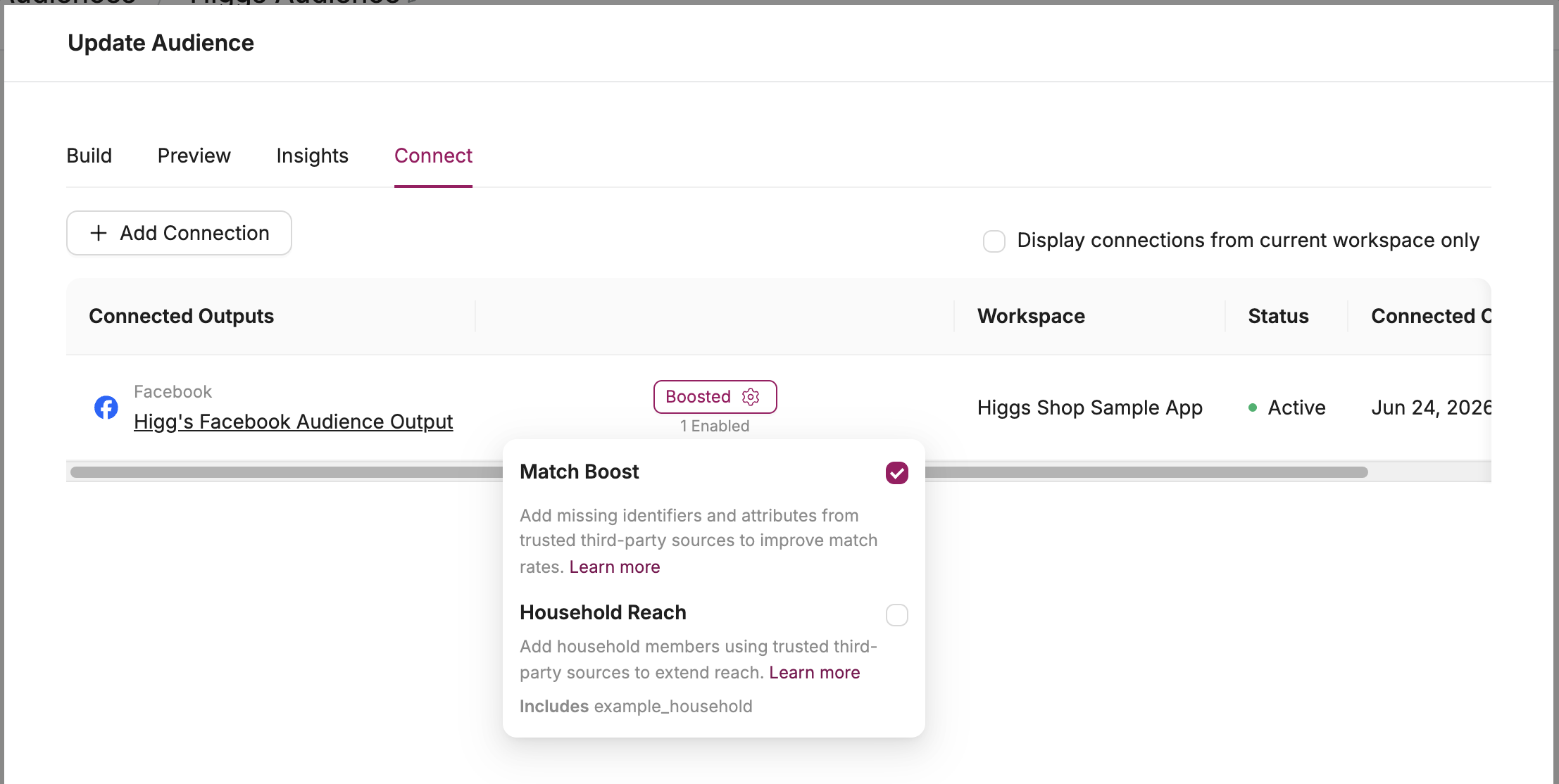
You can also reach the Connect tab from the Audience Group Editor by clicking the Boost/Boosted button on the audience card:
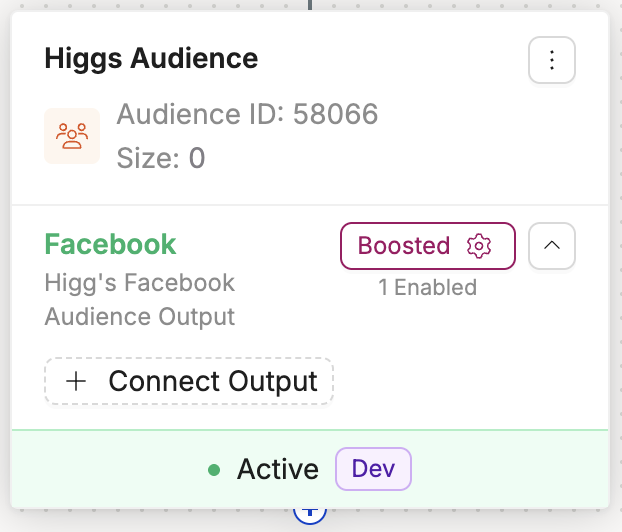
To enable Household Reach while creating a new audience connection:
- Select Audiences in the left-hand navigation.
- Select the audience to open the Audience Builder, then navigate to the Connect tab.
- Click Add Connection and configure your connection settings.
- In the Performance Accelerators section, check Enable Household Reach.
- Save or activate the connection.
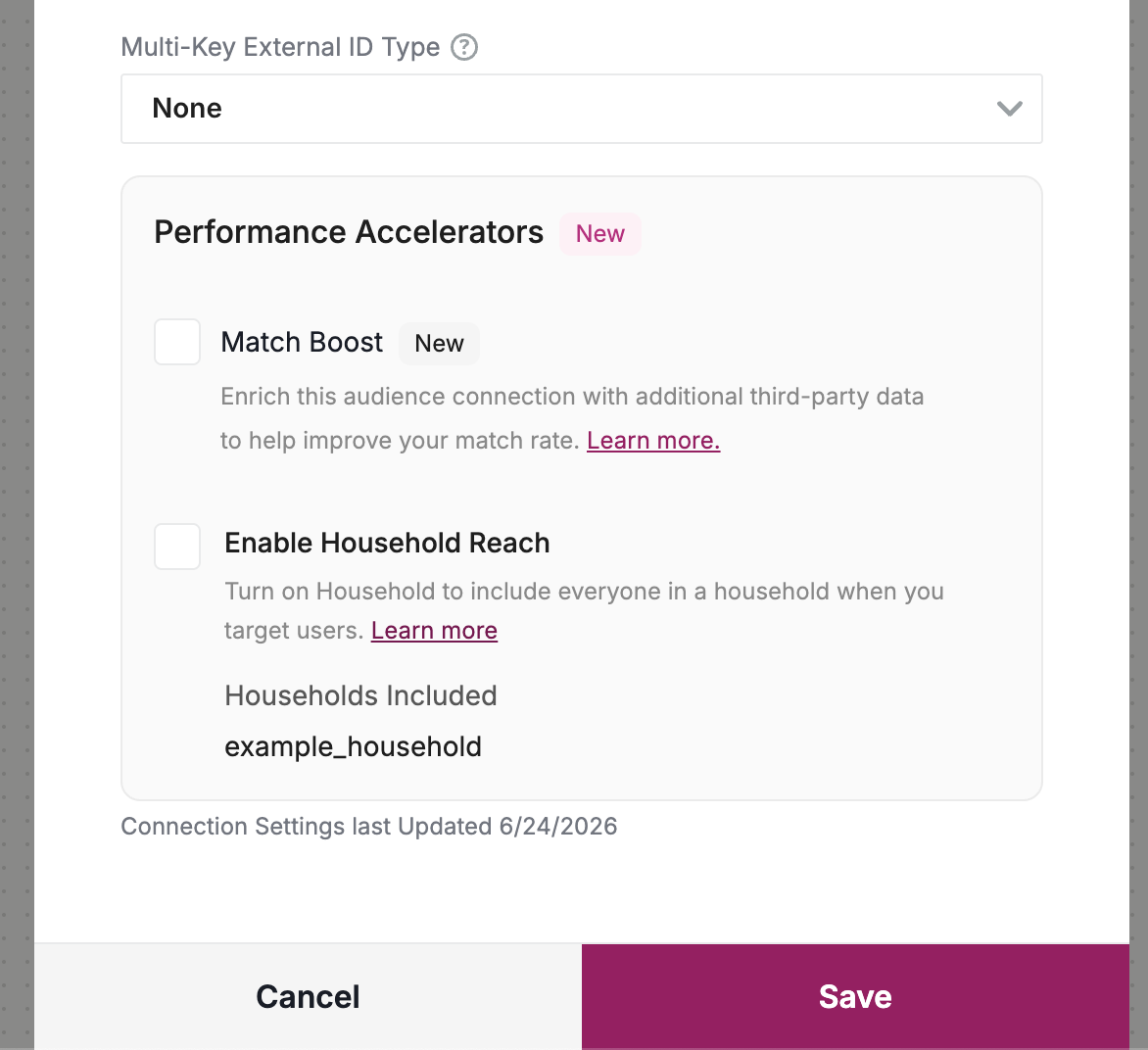
Disable Household Reach for an audience connection
To turn off Household Reach for a connection, use the Connect tab of the Audience Builder:
- Open the audience in the Audience Builder and select the Connect tab.
- Click the Boosted button next to the connection, and uncheck Household Reach. You can also uncheck it in the connection’s settings, under Performance Accelerators.
Verify your household
To confirm that a household definition is working:
- Go to Customer 360 > User Profiles and open a profile you expect to belong to a household.
- Under Profile Enrichment > Household Membership, confirm that the household identifier (for example,
$automatic_household) and any configured household attributes appear on the profile. - After the next daily sync (up to 24 hours), check delivery counts in your destination platform. Household-expanded delivery should exceed your direct audience size.
Was this page helpful?
- Last Updated: October 20, 2026