Developers
API References
Data Subject Request API
Data Subject Request API Version 1 and 2
Data Subject Request API Version 3
Platform API
Key Management
Platform API Overview
Accounts
Apps
Audiences
Calculated Attributes
Data Points
Feeds
Field Transformations
Services
Users
Workspaces
Warehouse Sync API
Warehouse Sync API Overview
Warehouse Sync API Tutorial
Warehouse Sync API Reference
Data Mapping
Warehouse Sync SQL Reference
Warehouse Sync Troubleshooting Guide
ComposeID
Warehouse Sync API v2 Migration
Audit Logs API
Bulk Profile Deletion API Reference
Calculated Attributes Seeding API
Group Identity API Reference
Data Planning API
Custom Access Roles API
Pixel Service
Profile API
Events API
mParticle JSON Schema Reference
IDSync
Client SDKs
AMP
AMP SDK
Android
Initialization
Configuration
Network Security Configuration
Event Tracking
User Attributes
IDSync
Screen Events
Commerce Events
Location Tracking
Media
Kits
Application State and Session Management
Data Privacy Controls
Error Tracking
Opt Out
Push Notifications
WebView Integration
Logger
Preventing Blocked HTTP Traffic with CNAME
Workspace Switching
Linting Data Plans
Troubleshooting the Android SDK
API Reference
Upgrade to Version 5
Cordova
Cordova Plugin
Identity
Direct Url Routing
Direct URL Routing FAQ
Web
Android
iOS
iOS
Workspace Switching
Initialization
Configuration
Event Tracking
User Attributes
IDSync
Screen Tracking
Commerce Events
Location Tracking
Media
Kits
Application State and Session Management
Data Privacy Controls
Error Tracking
Opt Out
Push Notifications
Webview Integration
Upload Frequency
App Extensions
Preventing Blocked HTTP Traffic with CNAME
Linting Data Plans
Troubleshooting iOS SDK
Social Networks
iOS 14 Guide
iOS 15 FAQ
iOS 16 FAQ
iOS 17 FAQ
iOS 18 FAQ
API Reference
Upgrade to Version 7
React Native
Getting Started
Identity
Unity
Upload Frequency
Getting Started
Opt Out
Initialize the SDK
Event Tracking
Commerce Tracking
Error Tracking
Screen Tracking
Identity
Location Tracking
Session Management
Web
Initialization
Content Security Policy
Configuration
Event Tracking
User Attributes
IDSync
Page View Tracking
Commerce Events
Location Tracking
Media
Kits
Application State and Session Management
Data Privacy Controls
Error Tracking
Opt Out
Custom Logger
Persistence
Native Web Views
Self-Hosting
Multiple Instances
Web SDK via Google Tag Manager
Preventing Blocked HTTP Traffic with CNAME
Facebook Instant Articles
Troubleshooting the Web SDK
Browser Compatibility
Linting Data Plans
API Reference
Upgrade to Version 2 of the SDK
Xamarin
Getting Started
Identity
Alexa
Quickstart
Android
Overview
Step 1. Create an input
Step 2. Verify your input
Step 3. Set up your output
Step 4. Create a connection
Step 5. Verify your connection
Step 6. Track events
Step 7. Track user data
Step 8. Create a data plan
Step 9. Test your local app
iOS Quick Start
Overview
Step 1. Create an input
Step 2. Verify your input
Step 3. Set up your output
Step 4. Create a connection
Step 5. Verify your connection
Step 6. Track events
Step 7. Track user data
Step 8. Create a data plan
Python Quick Start
Step 1. Create an input
Step 2. Create an output
Step 3. Verify output
Server SDKs
Node SDK
Go SDK
Python SDK
Ruby SDK
Java SDK
Guides
Partners
Introduction
Outbound Integrations
Outbound Integrations
Firehose Java SDK
Inbound Integrations
Compose ID
Data Hosting Locations
Glossary
Migrate from Segment to mParticle
Migrate from Segment to mParticle
Migrate from Segment to Client-side mParticle
Migrate from Segment to Server-side mParticle
Segment-to-mParticle Migration Reference
Rules Developer Guide
API Credential Management
The Developer's Guided Journey to mParticle
Guides
Composable Audiences
Composable Audiences Overview
User Guide
User Guide Overview
Warehouse Setup
Warehouse Setup Overview
Audience Setup
Frequently Asked Questions
Customer 360
Overview
User Profiles
Overview
User Profiles
Group Identity
Overview
Create and Manage Group Definitions
Calculated Attributes
Calculated Attributes Overview
Using Calculated Attributes
Create with AI Assistance
Calculated Attributes Reference
Predictions
Predictions Overview
What's Changed in the New Predictions UI
View and Manage Predictions
Predict Future Behavior
Future Behavior Predictions Overview
Create Future Behavior Prediction
Manage Future Behavior Predictions
Create an Audience with Future Behavior Predictions
Identity
Identity Dashboard
Identity Logs
Getting Started
Create an Input
Start capturing data
Connect an Event Output
Create an Audience
Connect an Audience Output
Transform and Enhance Your Data
Platform Guide
The New mParticle Experience
The new mParticle Experience
The Overview Map
Billing
Usage and Billing Report
Observability
Observability Overview
Observability User Guide
Observability Troubleshooting Examples
Observability Span Glossary
Platform Settings
Key Management
Platform Configuration
Audit Logs
Event Forwarding
Event Match Quality Dashboard
Notifications
System Alerts
Trends
Introduction
Data Retention
Data Catalog
Connections
Activity
Data Plans
Live Stream
Filters
Rules
Blocked Data Backfill Guide
Tiered Events
mParticle Users and Roles
Analytics Free Trial
Troubleshooting mParticle
Usage metering for value-based pricing (VBP)
IDSync
IDSync Overview
Use Cases for IDSync
Components of IDSync
Store and Organize User Data
Identify Users
Default IDSync Configuration
Profile Conversion Strategy
Profile Link Strategy
Profile Isolation Strategy
Best Match Strategy
Aliasing
Segmentation
Audiences
Audiences Overview
Create an Audience
Connect an Audience
Manage Audiences
Audience Sharing
Audience Expansion (Early Access)
Match Boost
FAQ
Inclusive & Exclusive Audiences (Early Access)
Inclusive & Exclusive Audiences Overview
Using Logic Blocks in Audiences
Combining Inclusive and Exclusive Audiences
Inclusive & Exclusive Audiences FAQ
Classic Audiences
Standard Audiences (Legacy)
Predictive Audiences
Predictive Audiences Overview
Using Predictive Audiences
New vs. Classic Experience Comparison
Analytics
Introduction
Core Analytics (Beta)
Setup
Sync and Activate Analytics User Segments in mParticle
User Segment Activation
Welcome Page Announcements
Settings
Project Settings
Roles and Teammates
Organization Settings
Global Project Filters
Portfolio Analytics
Analytics Data Manager
Analytics Data Manager Overview
Events
Event Properties
User Properties
Revenue Mapping
Export Data
UTM Guide
Analyses
Analyses Introduction
Segmentation: Basics
Getting Started
Visualization Options
For Clauses
Date Range and Time Settings
Calculator
Numerical Settings
Segmentation: Advanced
Assisted Analysis
Properties Explorer
Frequency in Segmentation
Trends in Segmentation
Did [not] Perform Clauses
Cumulative vs. Non-Cumulative Analysis in Segmentation
Total Count of vs. Users Who Performed
Save Your Segmentation Analysis
Export Results in Segmentation
Explore Users from Segmentation
Funnels: Basics
Getting Started with Funnels
Group By Settings
Conversion Window
Tracking Properties
Date Range and Time Settings
Visualization Options
Interpreting a Funnel Analysis
Funnels: Advanced
Group By
Filters
Conversion over Time
Conversion Order
Trends
Funnel Direction
Multi-path Funnels
Analyze as Cohort from Funnel
Save a Funnel Analysis
Explore Users from a Funnel
Export Results from a Funnel
Saved Analyses
Manage Analyses in Dashboards
Query Builder
Data Dictionary
Query Builder Overview
Modify Filters With And/Or Clauses
Query-time Sampling
Query Notes
Filter Where Clauses
Event vs. User Properties
Group By Clauses
Annotations
Cross-tool Compatibility
Apply All for Filter Where Clauses
Date Range and Time Settings Overview
User Attributes at Event Time
Understanding the Screen View Event
User Aliasing
Dashboards
Dashboards––Getting Started
Manage Dashboards
Dashboard Filters
Organize Dashboards
Scheduled Reports
Favorites
Time and Interval Settings in Dashboards
Query Notes in Dashboards
Analytics Resources
The Demo Environment
Keyboard Shortcuts
User Segments
Data Privacy Controls
Data Subject Requests
Default Service Limits
Feeds
Cross-Account Audience Sharing
Import Data with CSV Files
Import Data with CSV Files
CSV File Reference
Glossary
Video Index
Analytics (Deprecated)
Identity Providers
Single Sign-On (SSO)
Setup Examples
Introduction
Developer Docs
Introduction
Integrations
Introduction
Rudderstack
Google Tag Manager
Segment
Data Warehouses and Data Lakes
Advanced Data Warehouse Settings
AWS Kinesis (Snowplow)
AWS Redshift (Define Your Own Schema)
AWS S3 Integration (Define Your Own Schema)
AWS S3 (Snowplow Schema)
BigQuery (Snowplow Schema)
BigQuery Firebase Schema
BigQuery (Define Your Own Schema)
GCP BigQuery Export
Snowplow Schema Overview
Snowflake (Snowplow Schema)
Snowflake (Define Your Own Schema)
Developer Basics
Aliasing
Integrations
24i
Event
Aarki
Audience
ABTasty
Audience
Actable
Feed
AdChemix
Event
AdMedia
Audience
Adobe Marketing Cloud
Cookie Sync
Platform SDK Events
Server-to-Server Events
Adobe Audience Manager
Audience
Adobe Experience Platform
Event
Adobe Campaign Manager
Audience
Adobe Target
Audience
AdPredictive
Feed
AgilOne
Event
Algolia
Event
Amazon Advertising
Audience
Amazon Kinesis
Event
Amazon Redshift
Data Warehouse
Amazon SQS
Event
Amazon S3
Event
Amazon SNS
Event
Amobee
Audience
Antavo
Feed
Anodot
Event
Apptentive
Event
Awin
Event
Apptimize
Event
Microsoft Azure Blob Storage
Event
Bidease
Audience
Bing Ads
Event
Bluecore
Event
Bluedot
Feed
Branch S2S Event
Event
Bugsnag
Event
Cadent
Audience
Census
Feed
comScore
Event
Conversant
Event
Crossing Minds
Event
Custom Feed
Custom Feed
Databricks
Data Warehouse
Datadog
Event
Didomi
Event
Eagle Eye
Audience
Edge226
Audience
Epsilon
Event
Emarsys
Audience
Everflow
Audience
Google Analytics for Firebase
Event
Facebook Offline Conversions
Event
Flurry
Event
Flybits
Event
ForeSee
Event
Friendbuy
Event
FreeWheel Data Suite
Audience
Google Ad Manager
Audience
Google Analytics
Event
Google Analytics 4
Event
Google BigQuery
Audience
Data Warehouse
Google Enhanced Conversions
Event
Google Marketing Platform
Cookie Sync
Audience
Event
Google Marketing Platform Offline Conversions
Event
Google Pub/Sub
Event
Google Tag Manager
Event
Heap
Event
Herow
Feed
Hightouch
Feed
Hyperlocology
Event
Ibotta
Event
ID5
Kit
Impact
Event
InMarket
Audience
Inspectlet
Event
Intercom
Event
ironSource
Audience
Kafka
Event
Kissmetrics
Event
Kubit
Event
LaunchDarkly
Feed
LifeStreet
Audience
LiveLike
Event
Liveramp
Audience
mAdme Technologies
Event
Localytics
Event
MadHive
Audience
Marigold
Audience
MediaMath
Audience
Mediasmart
Audience
Microsoft Ads
Microsoft Ads Audience Integration
Mintegral
Audience
Monetate
Event
Movable Ink
Event
Movable Ink - V2
Event
Multiplied
Event
Microsoft Azure Event Hubs
Event
Nami ML
Feed
Nanigans
Event
NCR Aloha
Event
Neura
Event
OneTrust
Event
Oracle BlueKai
Event
Paytronix
Feed
Personify XP
Event
Persona.ly
Audience
Plarin
Event
Primer
Event
Qualtrics
Event
Quantcast
Event
Rakuten
Event
Apteligent
Event
Reveal Mobile
Event
RevenueCat
Feed
Salesforce Mobile Push
Event
Scalarr
Event
Shopify
Custom Pixel
Feed
SimpleReach
Event
Singular-DEPRECATED
Event
Slack
Event
Skyhook
Event
Smadex
Audience
SmarterHQ
Event
Snapchat Conversions
Event
Snowflake
Audience
Data Warehouse
Snowplow
Event
Splunk MINT
Event
StartApp
Audience
Talon.One
Event
Audience
Feed
Loyalty Feed
Tapad
Audience
Tapjoy
Audience
Taplytics
Event
Taptica
Audience
Teak
Audience
The Trade Desk
Audience
Cookie Sync
Event
Ticketure
Feed
Triton Digital
Audience
TUNE
Event
Valid
Event
Vkontakte
Audience
Vungle
Audience
Webhook
Event
Webtrends
Event
White Label Loyalty
Event
Wootric
Event
Xandr
Audience
Cookie Sync
Yahoo (formerly Verizon Media)
Cookie Sync
Audience
Yotpo
Feed
YouAppi
Audience
Regal
Event
Event Match Quality Dashboard
Event Match Quality (EMQ), sometimes referred to as Event Quality Score (EQS), indicates how effectively conversion events forwarded from mParticle to a downstream partner are matched to users in that partner’s system. mParticle surfaces these scores from partners in the Event Match Quality Dashboard. These scores help you understand how well your forwarded events support attribution, optimization, and measurement use cases in partner platforms.
If you have configured Conversion API (CAPI) outputs in mParticle, you can use the Event Match Quality Dashboard to:
- Review the EMQ scores for events you forward to supported partners.
- Drill into parameter-level coverage for user identifiers and attributes such as email, phone, IP address, and click IDs.
- Identify data quality gaps that may impact conversion matching and performance in supported partners.
The EMQ Dashboard is a read-only, informational view. Each supported partner independently calculates its EMQ scores, and some expose them via partner APIs. mParticle does not calculate or modify the EMQ scores provided by partners. The partner provides the information shown on the dashboard.
Supported outputs
EMQ scores are displayed for the dataset per individual event output connection.
The currently supported outputs are:
Support for additional CAPI partners may be added over time.
For more information about the EMQ scores from Meta, see About Event Match Quality in Meta’s Business Help Center. mParticle retrieves EMQ scores using Meta’s Dataset Quality API.
Prerequisites
To use the EMQ Dashboard, you must:
- Configure at least one supported downstream event CAPI output in mParticle.
- Authenticate that connection using credentials that include access to the partner’s dataset and event quality APIs.
Meta specific requirements
For Meta (Facebook) event outputs:
Your Meta Conversions API access token must have Set up with Dataset Quality API enabled. This setting is enabled by default for new tokens and is typically missing only on older tokens or if explicitly disabled. If your access token does not have this permission, you can create a new token by following Meta’s Get Started guide and update your mParticle Facebook event output configuration. For additional reference, you can also see Meta’s API docs to generate a Conversions API access token in the Meta Events Manager.
Ensure the following are correctly configured in the mParticle settings:
- A Meta Conversions API access token created for the correct dataset or pixel
- The matching pixel or dataset ID
The access token and pixel or dataset ID must correspond to the same dataset for EMQ scores to be retrieved.
Once configured, mParticle can retrieve and display EMQ scores for events sent to Meta via the Conversions API.
For step by step instructions to set up these connections, see:
Access the Event Match Quality Dashboard
To access the EMQ Dashboard:
- Sign in to your mParticle account.
- Using the left-hand navigation, go to Data Platform > Event Match Quality.
Select a connection
You must select a specific event output connection before any event match quality scores are displayed.
- Click the dropdown menu labeled Select Event Output Connection to view available connections. You can also search by name or pixel ID.
- Select the output you want to view EMQ scores for, and click View Scores.
The Dashboard refreshes to display event quality information for the selected output, with the event name on the left and the event quality score on the right.
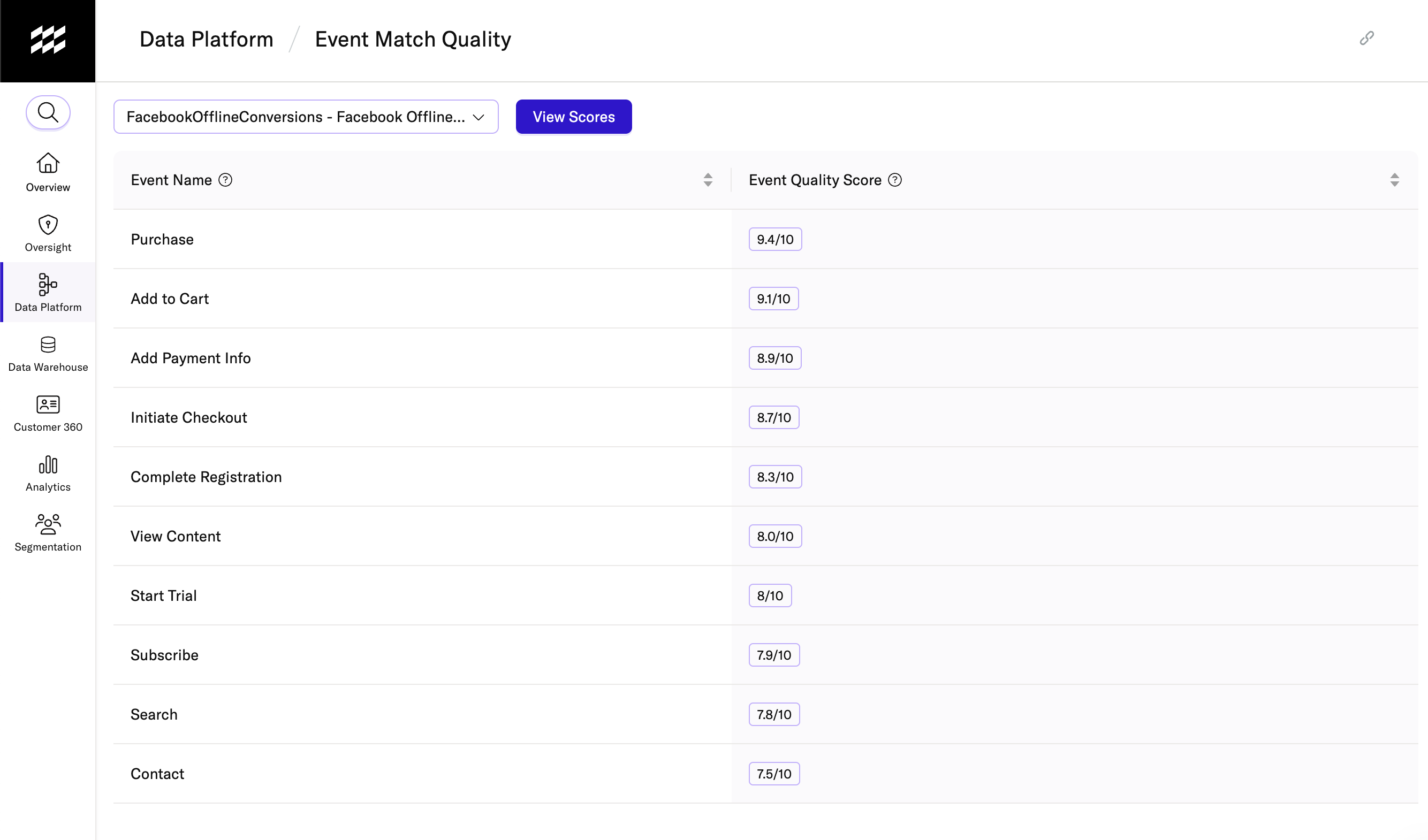
If no supported outputs are available in the workspace, the dropdown is disabled, and the page displays a message indicating that at least one supported connection is required.
View Event Quality scores
The main table on the EMQ Dashboard displays one row per event for which the downstream partner has reported EMQ metrics.
The table shows:
- Event Name
- Event Match Quality score, typically reported on a scale of 0 to 10 depending on the partner
How partners calculate EMQ scores
Each partner defines and calculates scores differently. Meta calculates EMQ in real time based on the presence, quality, and matching of user identifiers and attributes in events received via the Conversions API over the last 48 hours. For detailed scoring logic and recommendations, see Meta’s About Event Match Quality.
View parameter coverage for an event
EMQ scores are influenced by user identifiers and attributes included in the forwarded events. To further understand an event’s score, you can review its parameter coverage.
To view the parameter coverage, click the event in the EMQ Dashboard table.
A details panel opens showing each parameter (user identifier or attribute) and the percentage of events received that included a value for that parameter.
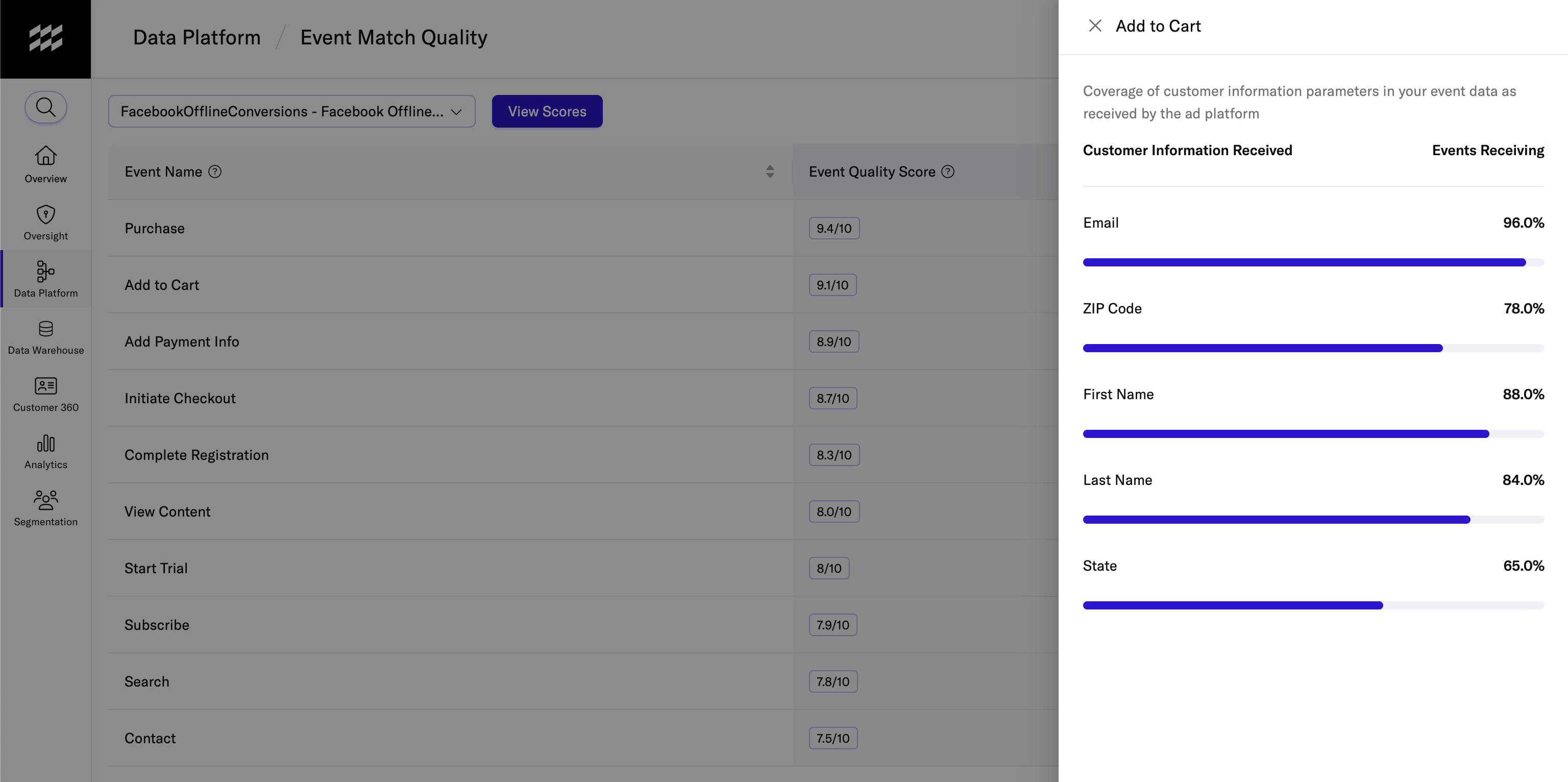
For example, if the details panel shows “Email: 96.7%”, then 96.7 percent of recent occurrences of that event included an email address in the payload received by the partner. This percentage does not necessarily indicate the percentage of events successfully matched by the partner.
Reported parameters vary by partner and implementation and may include:
- Click ID
- Partner ID
- Phone number
- Birthdate
- IP address
- Browser ID
- External ID
- Name fields
- Location fields
Only parameters returned by the partner for your dataset are displayed. For Meta-specific parameter priorities, see About Event Match Quality in Meta’s Business Help Center.
How to use your EMQ scores
This section provides guidance to help you move from understanding your EMQ scores to improving data quality.
Interpreting your scores
What constitutes a strong or good EMQ score depends on the partner. Always refer to partner documentation for benchmarks and recommendations. For Meta, you can see About Event Match Quality in Meta’s Business Help Center.
In general:
- Higher EMQ scores indicate better coverage of identifiers needed for matching
- Lower EMQ scores may indicate missing, improperly formatted, or low-quality identifiers
Use the parameter coverage view to identify which fields most influence each event’s score.
Improve your data quality
If you observe low EMQ scores or low parameter coverage, consider the following in mParticle and in your upstream implementation:
- Ensure that important identifiers such as email, phone, or external IDs are present in your data flows and mapped correctly to the partner fields
- Verify values are formatted according to partner requirements, including normalization and country codes
- Confirm hashing, encoding, and transformation rules match partner specifications
The mParticle EMQ dashboard is intended to surface partner scores alongside a high-level parameter breakdown. To see a parameter-level breakdown by event name and understand your current parameter coverage, see View parameter coverage for an event.
To understand what drives the score and identify improvement opportunities, consult partner documentation and reps for additional guidance. For Meta, you can find additional details and guidance directly in your Meta Events Manager, including actions Meta recommends for your dataset.
Common questions and issues (FAQ)
You do not see the EMQ Dashboard in navigation
If Data Platform > Event Match Quality navigation option is not available:
- Your mParticle user role may not have access to the dashboard
No options appear in the output selection dropdown
Only Facebook event outputs that include both a configured access token and a pixel/dataset ID appear.
You may see no options if:
- No Facebook event outputs to Meta CAPI exist in the workspace
- The output lacks a configured access token and pixel/dataset ID
If needed, you can set up a new Facebook Event output to Meta CAPI with a Facebook access token and the pixel ID.
No scores are displayed after selecting an output
This can occur if:
- The partner has not generated EMQ scores yet
- No recent events have been received for the dataset
- The dataset or pixel does not support EMQ
- The connection is newly created
- Events are not successfully flowing to the partner
Verify event delivery in the partner UI, such as Meta Events Manager.
Please ensure recent events are forwarded to Meta CAPI for the dataset in the Facebook event output. You can also verify event delivery in the partner UI (e.g., Meta Event Manager) directly to confirm whether events are arriving and whether any EMQ data is available for the dataset.
Errors appear after clicking View Scores
In case of errors, mParticle displays the error message received from the partner, which may or may not suggest the root cause. Errors typically originate from the partner API and often relate to credentials. For Meta, they are centered around the access token and the pixel ID.
Common causes include:
- Access token is invalid/expired
- Access token is missing permissions for the partner’s EMQ API
- Mismatch between access token and configured pixel/dataset ID
To resolve, you can try to:
- Regenerate the access token with required permissions
- Update or create a connection configuration in mParticle
- Confirm the access token and pixel/dataset ID match, and the token was created for the configured dataset
EMQ scores differ from the partner UI
If scores differ:
- Confirm the same dataset or pixel is selected
- Ensure you are comparing similar time ranges
- Verify that the correct connection and dataset are selected in mParticle
mParticle displays scores exactly as returned by the partner API, so mismatches usually indicate a configuration or selection difference rather than a calculation difference.
Unsure what the parameter percentages represent
The percentages indicate the share of recent events for which the partner received a value for that parameter. For Meta, this number does not always necessarily represent match success rates. See View parameter coverage for an event for details.
Was this page helpful?
- Last Updated: March 27, 2026