Developers
API References
Data Subject Request API
Data Subject Request API Version 1 and 2
Data Subject Request API Version 3
Platform API
Key Management
Platform API Overview
Accounts
Apps
Audiences
Calculated Attributes
Data Points
Feeds
Field Transformations
Services
Users
Workspaces
Warehouse Sync API
Warehouse Sync API Overview
Warehouse Sync API Tutorial
Warehouse Sync API Reference
Data Mapping
Warehouse Sync SQL Reference
Warehouse Sync Troubleshooting Guide
ComposeID
Warehouse Sync API v2 Migration
Audit Logs API
Bulk Profile Deletion API Reference
Calculated Attributes Seeding API
Custom Access Roles API
Data Planning API
Group Identity API Reference
Pixel Service
Profile API
Events API
mParticle JSON Schema Reference
IDSync
Client SDKs
AMP
AMP SDK
Android
Initialization
Configuration
Network Security Configuration
Event Tracking
User Attributes
IDSync
Screen Events
Commerce Events
Location Tracking
Media
Kits
Application State and Session Management
Data Privacy Controls
Error Tracking
Opt Out
Push Notifications
WebView Integration
Logger
Preventing Blocked HTTP Traffic with CNAME
Workspace Switching
Linting Data Plans
Troubleshooting the Android SDK
API Reference
Upgrade to Version 5
Cordova
Cordova Plugin
Identity
Direct Url Routing
Direct URL Routing FAQ
Web
Android
iOS
iOS
Workspace Switching
Initialization
Configuration
Event Tracking
User Attributes
IDSync
Screen Tracking
Commerce Events
Location Tracking
Media
Kits
Application State and Session Management
Data Privacy Controls
Error Tracking
Opt Out
Push Notifications
Webview Integration
Upload Frequency
App Extensions
Preventing Blocked HTTP Traffic with CNAME
Linting Data Plans
Troubleshooting iOS SDK
Social Networks
iOS 14 Guide
iOS 15 FAQ
iOS 16 FAQ
iOS 17 FAQ
iOS 18 FAQ
API Reference
Upgrade to Version 7
React Native
Getting Started
Identity
Web
Initialization
Configuration
Content Security Policy
Event Tracking
User Attributes
IDSync
Page View Tracking
Commerce Events
Location Tracking
Media
Kits
Application State and Session Management
Data Privacy Controls
Error Tracking
Opt Out
Custom Logger
Persistence
Native Web Views
Self-Hosting
Multiple Instances
Web SDK via Google Tag Manager
Preventing Blocked HTTP Traffic with CNAME
Facebook Instant Articles
Troubleshooting the Web SDK
Browser Compatibility
Linting Data Plans
API Reference
Upgrade to Version 2 of the SDK
Unity
Upload Frequency
Getting Started
Opt Out
Initialize the SDK
Event Tracking
Commerce Tracking
Error Tracking
Screen Tracking
Identity
Location Tracking
Session Management
Xamarin
Getting Started
Identity
Alexa
Quickstart
Android
Overview
Step 1. Create an input
Step 2. Verify your input
Step 3. Set up your output
Step 4. Create a connection
Step 5. Verify your connection
Step 6. Track events
Step 7. Track user data
Step 8. Create a data plan
Step 9. Test your local app
iOS Quick Start
Overview
Step 1. Create an input
Step 2. Verify your input
Step 3. Set up your output
Step 4. Create a connection
Step 5. Verify your connection
Step 6. Track events
Step 7. Track user data
Step 8. Create a data plan
Python Quick Start
Step 1. Create an input
Step 2. Create an output
Step 3. Verify output
Guides
Partners
Introduction
Outbound Integrations
Outbound Integrations
Firehose Java SDK
Inbound Integrations
Compose ID
Data Hosting Locations
Glossary
Migrate from Segment to mParticle
Migrate from Segment to mParticle
Migrate from Segment to Client-side mParticle
Migrate from Segment to Server-side mParticle
Segment-to-mParticle Migration Reference
Rules Developer Guide
Server SDKs
Node SDK
Go SDK
Python SDK
Ruby SDK
Java SDK
API Credential Management
The Developer's Guided Journey to mParticle
Guides
Composable Audiences
Composable Audiences Overview
User Guide
User Guide Overview
Warehouse Setup
Warehouse Setup Overview
Audience Setup
Frequently Asked Questions
Customer 360
Overview
User Profiles
Overview
User Profiles
Group Identity
Overview
Create and Manage Group Definitions
Calculated Attributes
Calculated Attributes Overview
Using Calculated Attributes
Create with AI Assistance
Calculated Attributes Reference
Predictions
Predictions Overview
What's Changed in the New Predictions UI
View and Manage Predictions
Predict Future Behavior
Future Behavior Predictions Overview
Create Future Behavior Prediction
Manage Future Behavior Predictions
Create an Audience with Future Behavior Predictions
Identity
Identity Dashboard
Identity Logs
Getting Started
Create an Input
Start capturing data
Connect an Event Output
Create an Audience
Connect an Audience Output
Transform and Enhance Your Data
Platform Guide
The New mParticle Experience
The new mParticle Experience
The Overview Map
Billing
Usage and Billing Report
Observability
Observability Overview
Observability User Guide
Observability Troubleshooting Examples
Observability Span Glossary
Platform Settings
Key Management
Platform Configuration
Audit Logs
Event Forwarding
Event Match Quality Dashboard
Notifications
System Alerts
Trends
Introduction
Data Retention
Data Catalog
Connections
Activity
Data Plans
Live Stream
Filters
Rules
Blocked Data Backfill Guide
Tiered Events
mParticle Users and Roles
Analytics Free Trial
Troubleshooting mParticle
Usage metering for value-based pricing (VBP)
IDSync
IDSync Overview
Use Cases for IDSync
Components of IDSync
Store and Organize User Data
Identify Users
Default IDSync Configuration
Profile Conversion Strategy
Profile Link Strategy
Profile Isolation Strategy
Best Match Strategy
Aliasing
Segmentation
Audiences
Audiences Overview
Create an Audience
Connect an Audience
Manage Audiences
Audience Sharing
Audience Expansion (Early Access)
Match Boost
FAQ
Inclusive & Exclusive Audiences (Early Access)
Inclusive & Exclusive Audiences Overview
Using Logic Blocks in Audiences
Combining Inclusive and Exclusive Audiences
Inclusive & Exclusive Audiences FAQ
Classic Audiences
Standard Audiences (Legacy)
Predictive Audiences
Predictive Audiences Overview
Using Predictive Audiences
New vs. Classic Experience Comparison
Analytics
Introduction
Core Analytics (Beta)
Setup
Sync and Activate Analytics User Segments in mParticle
User Segment Activation
Welcome Page Announcements
Settings
Project Settings
Roles and Teammates
Organization Settings
Global Project Filters
Portfolio Analytics
Analytics Data Manager
Analytics Data Manager Overview
Events
Event Properties
User Properties
Revenue Mapping
Export Data
UTM Guide
Analyses
Analyses Introduction
Segmentation: Basics
Getting Started
Visualization Options
For Clauses
Date Range and Time Settings
Calculator
Numerical Settings
Segmentation: Advanced
Assisted Analysis
Properties Explorer
Frequency in Segmentation
Trends in Segmentation
Did [not] Perform Clauses
Cumulative vs. Non-Cumulative Analysis in Segmentation
Total Count of vs. Users Who Performed
Save Your Segmentation Analysis
Export Results in Segmentation
Explore Users from Segmentation
Funnels: Basics
Getting Started with Funnels
Group By Settings
Conversion Window
Tracking Properties
Date Range and Time Settings
Visualization Options
Interpreting a Funnel Analysis
Funnels: Advanced
Group By
Filters
Conversion over Time
Conversion Order
Trends
Funnel Direction
Multi-path Funnels
Analyze as Cohort from Funnel
Save a Funnel Analysis
Explore Users from a Funnel
Export Results from a Funnel
Saved Analyses
Manage Analyses in Dashboards
Query Builder
Data Dictionary
Query Builder Overview
Modify Filters With And/Or Clauses
Query-time Sampling
Query Notes
Filter Where Clauses
Event vs. User Properties
Group By Clauses
Annotations
Cross-tool Compatibility
Apply All for Filter Where Clauses
Date Range and Time Settings Overview
User Attributes at Event Time
Understanding the Screen View Event
User Aliasing
Dashboards
Dashboards––Getting Started
Manage Dashboards
Dashboard Filters
Organize Dashboards
Scheduled Reports
Favorites
Time and Interval Settings in Dashboards
Query Notes in Dashboards
Analytics Resources
The Demo Environment
Keyboard Shortcuts
User Segments
Data Privacy Controls
Data Subject Requests
Default Service Limits
Feeds
Cross-Account Audience Sharing
Import Data with CSV Files
Import Data with CSV Files
CSV File Reference
Glossary
Video Index
Analytics (Deprecated)
Identity Providers
Single Sign-On (SSO)
Setup Examples
Introduction
Developer Docs
Introduction
Integrations
Introduction
Rudderstack
Google Tag Manager
Segment
Data Warehouses and Data Lakes
Advanced Data Warehouse Settings
AWS Kinesis (Snowplow)
AWS Redshift (Define Your Own Schema)
AWS S3 Integration (Define Your Own Schema)
AWS S3 (Snowplow Schema)
BigQuery (Snowplow Schema)
BigQuery Firebase Schema
BigQuery (Define Your Own Schema)
GCP BigQuery Export
Snowflake (Snowplow Schema)
Snowplow Schema Overview
Snowflake (Define Your Own Schema)
Developer Basics
Aliasing
Integrations
Aarki
Audience
24i
Event
ABTasty
Audience
Actable
Feed
AdChemix
Event
AdMedia
Audience
Adobe Marketing Cloud
Cookie Sync
Server-to-Server Events
Platform SDK Events
Adobe Audience Manager
Audience
Adobe Campaign Manager
Audience
Adobe Experience Platform
Event
Adobe Target
Audience
AdPredictive
Feed
AgilOne
Event
Algolia
Event
Amazon Kinesis
Event
Amazon Redshift
Data Warehouse
Amazon Advertising
Audience
Amazon S3
Event
Amazon SNS
Event
Amazon SQS
Event
Amobee
Audience
Antavo
Feed
Anodot
Event
Apptentive
Event
Apptimize
Event
Apteligent
Event
Microsoft Azure Blob Storage
Event
Bidease
Audience
Bluecore
Event
Bing Ads
Event
Bluedot
Feed
Branch S2S Event
Event
Awin
Event
Bugsnag
Event
Cadent
Audience
Census
Feed
comScore
Event
Conversant
Event
Crossing Minds
Event
Custom Feed
Custom Feed
Databricks
Data Warehouse
Datadog
Event
Didomi
Event
Eagle Eye
Audience
Edge226
Audience
Emarsys
Audience
Everflow
Audience
Facebook Offline Conversions
Event
Epsilon
Event
Flurry
Event
Google Analytics for Firebase
Event
ForeSee
Event
Flybits
Event
FreeWheel Data Suite
Audience
Friendbuy
Event
Google Ad Manager
Audience
Google Analytics 4
Event
Google Analytics
Event
Google BigQuery
Audience
Data Warehouse
Google Marketing Platform
Cookie Sync
Audience
Event
Google Pub/Sub
Event
Google Tag Manager
Event
Google Enhanced Conversions
Event
Google Marketing Platform Offline Conversions
Event
Herow
Feed
Hightouch
Feed
Heap
Event
Hyperlocology
Event
Ibotta
Event
ID5
Kit
Impact
Event
InMarket
Audience
Inspectlet
Event
ironSource
Audience
Kafka
Event
Kissmetrics
Event
LaunchDarkly
Feed
Kubit
Event
LifeStreet
Audience
Liveramp
Audience
LiveLike
Event
Localytics
Event
MadHive
Audience
mAdme Technologies
Event
Marigold
Audience
MediaMath
Audience
Mediasmart
Audience
Microsoft Ads
Microsoft Ads Audience Integration
Mintegral
Audience
Microsoft Azure Event Hubs
Event
Movable Ink
Event
Monetate
Event
Movable Ink - V2
Event
Multiplied
Event
Nanigans
Event
Nami ML
Feed
NCR Aloha
Event
Neura
Event
OneTrust
Event
Oracle BlueKai
Event
Paytronix
Feed
Persona.ly
Audience
Personify XP
Event
Plarin
Event
Primer
Event
Qualtrics
Event
Quantcast
Event
Intercom
Event
Regal
Event
Rakuten
Event
Reveal Mobile
Event
RevenueCat
Feed
Salesforce Mobile Push
Event
Scalarr
Event
Shopify
Custom Pixel
Feed
Singular-DEPRECATED
Event
SimpleReach
Event
Skyhook
Event
Slack
Event
Smadex
Audience
SmarterHQ
Event
Snapchat Conversions
Event
Snowflake
Audience
Data Warehouse
Snowplow
Event
Splunk MINT
Event
StartApp
Audience
Talon.One
Audience
Loyalty Feed
Feed
Event
Tapad
Audience
Tapjoy
Audience
Taplytics
Event
Taptica
Audience
Teak
Audience
The Trade Desk
Audience
Event
Cookie Sync
Ticketure
Feed
TUNE
Event
Triton Digital
Audience
Vkontakte
Audience
Valid
Event
Vungle
Audience
Webhook
Event
Webtrends
Event
White Label Loyalty
Event
Xandr
Audience
Cookie Sync
Wootric
Event
Yahoo (formerly Verizon Media)
Audience
Cookie Sync
Yotpo
Feed
YouAppi
Audience
Combining Inclusive and Exclusive Audiences
Following is a realistic scenario in which logic blocks are used to create a complex audience group that contains both inclusive and exclusive audiences. Combining inclusive and exclusive audiences using logic blocks is useful when you want inclusive behavior at one level and exclusive behavior inside nested logic blocks. This is most helpful when:
- You want users to belong to multiple high level cohorts, such as genres or product lines, while still assigning them to a single sub audience inside each cohort.
- You are running several overlapping campaigns inside a cohort and want that flexibility, while keeping certain dimensions, like subscription tier, mutually exclusive.
Use this approach when you want to treat some cohorts as inclusive for targeting and personalization, while still enforcing exclusivity for certain audiences that should never overlap, such as subscription level.
Before continuing, make sure you understand what logic blocks are and how they create exclusivity between audiences as described in the Overview.
Example: Genre-Based Audiences with Subscription Tiers
As an example, imagine you run the marketing campaigns for a streaming service and want to build audiences based on the genres viewers watch and their subscription tier.
Viewers should be added to multiple genre-specific audiences (like Comedy and Drama) based on their viewing behavior. However, within each genre, a viewer should only be added to a single subscription tier audience: either Basic Subscribers or Premium Subscribers.
Business Scenario
The streaming service wants to:
- Send genre-specific content recommendations to viewers based on their viewing habits
- Target different subscription tiers with appropriate offers (upgrade offers for Basic, exclusive content for Premium)
- Ensure viewers receive multiple genre recommendations if they watch multiple genres
- Prevent viewers from being in both Basic and Premium audiences for the same genre
Expected Behavior
After completing this example:
- A viewer who watches Comedy and Drama will be in both Comedy Viewers and Drama Viewers (inclusive)
- Within Comedy Viewers, the viewer will be in either Comedy: Basic Subscribers OR Comedy: Premium Subscribers (exclusive)
- A Premium subscriber who watches multiple genres will appear in multiple Premium audiences (Comedy: Premium, Drama: Premium, etc.)
Step 1: Create the audience group
First, create your audience group:
- In the left navigation, navigate to Segmentation > Audiences.
- Click New Audience, enter a descriptive name for the audience group, like “Movie Viewers”, and select the data inputs needed to provide the user and event data that the audiences will be built from.
- Click Create.
Step 2: Create the genre audiences
- After creating the audience group, you are automatically taken to the Audience Builder. Here, you can create your first genre-based audience.
- Note that the audience name is automatically populated with the name of your audience group. Replace this with the name of your first genre-based audience, like “Comedy Viewers”.
- Add the necessary event or user-based membership criteria to collect all users who have viewed a comedy movie. For example: Users who watched a comedy movie in the last 30 days.
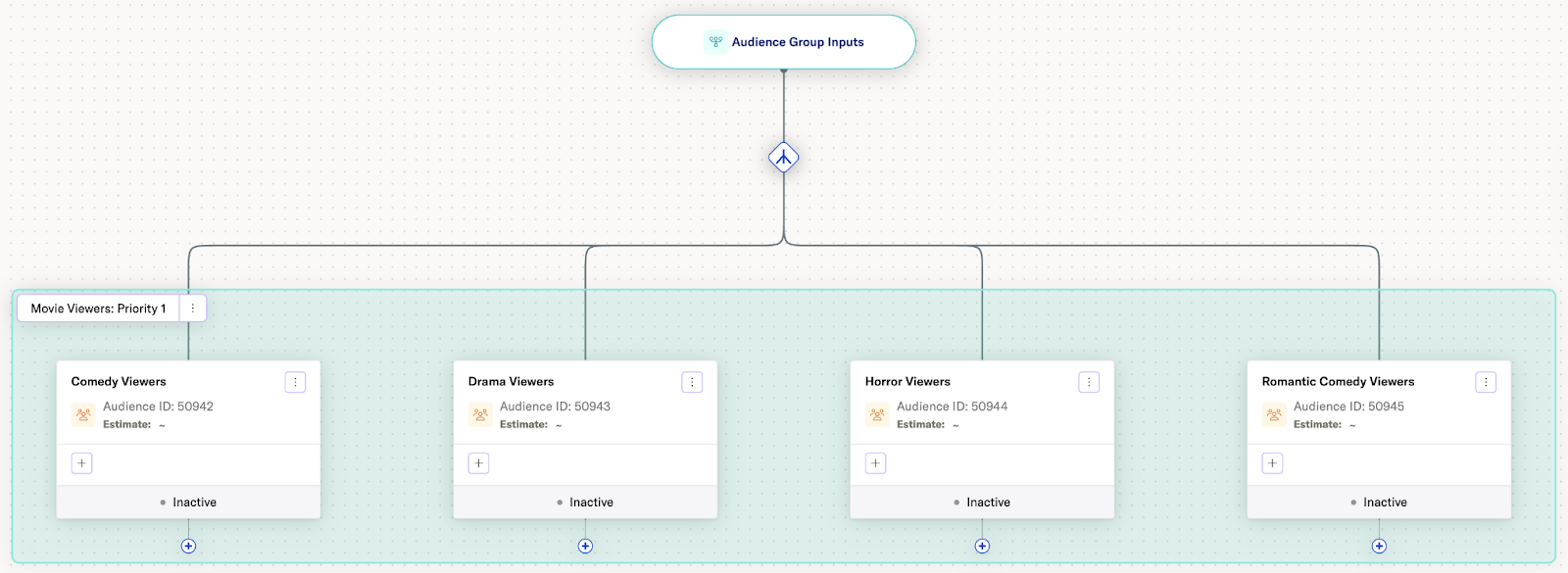
- Using the Add path button, create the three remaining genre-based audiences: Drama Viewers, Horror Viewers, and Romantic Comedy Viewers. Each of these audiences should be a direct child of the audience group inputs.
As soon as you add the second genre-based audience (Drama Viewers), a logic block will be drawn around your two audiences. As you continue to add your genre audiences, they are automatically added to this same logic block. This allows for inclusivity between audiences: a viewer who watches both comedy and drama will be added to both Comedy Viewers and Drama Viewers.
Step 3: Add subscription tier audiences for each genre
Next, you will create two subscription tier audiences under each genre: one for Basic Subscribers and one for Premium Subscribers.
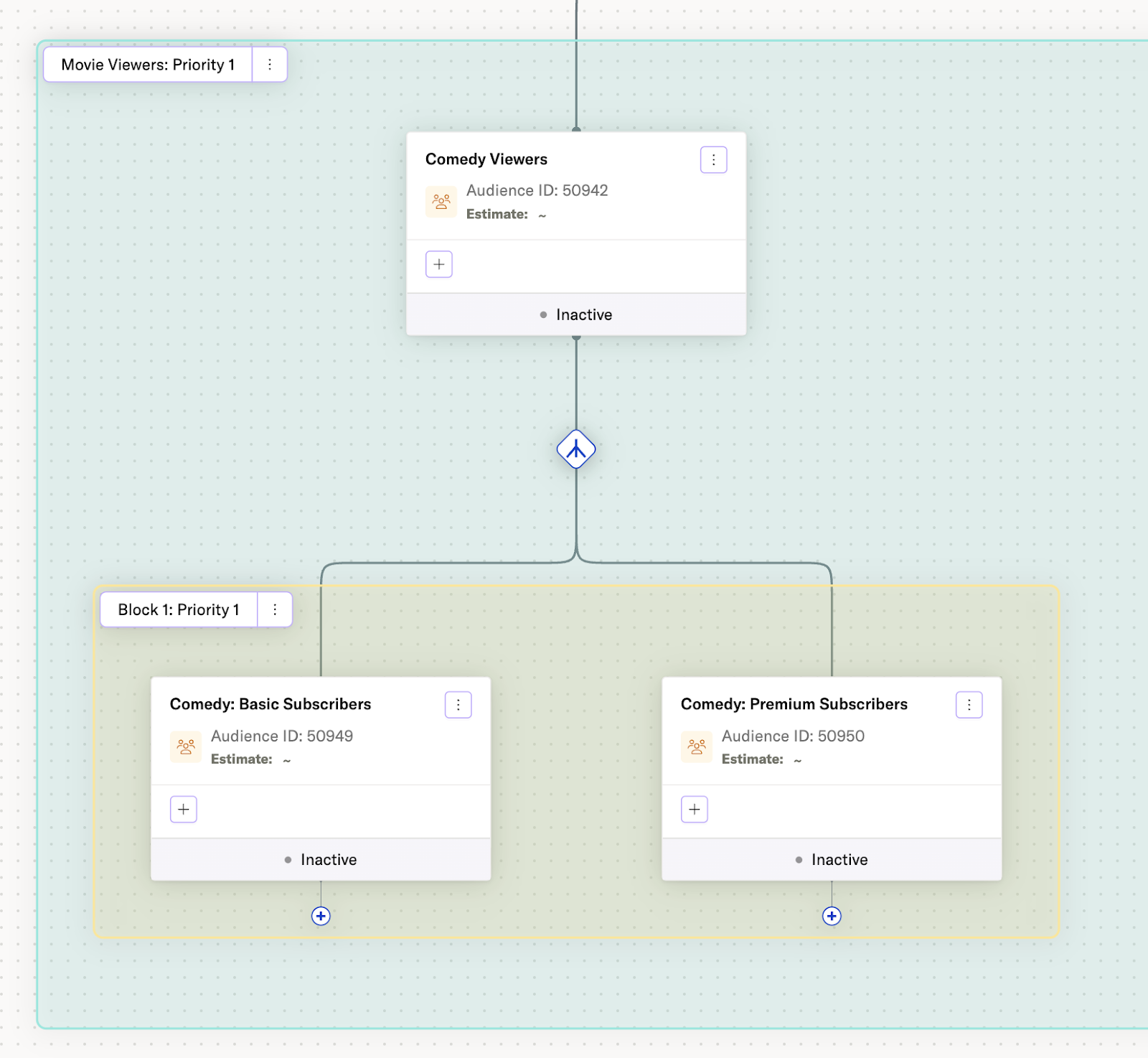
- Click the + button beneath the Comedy Viewers audience and click Audience.
- Select Start from Scratch and click Next.
- Enter a name, like “Comedy: Basic Subscribers”, and enter your membership criteria. For example: Users where subscription-tier is basic.
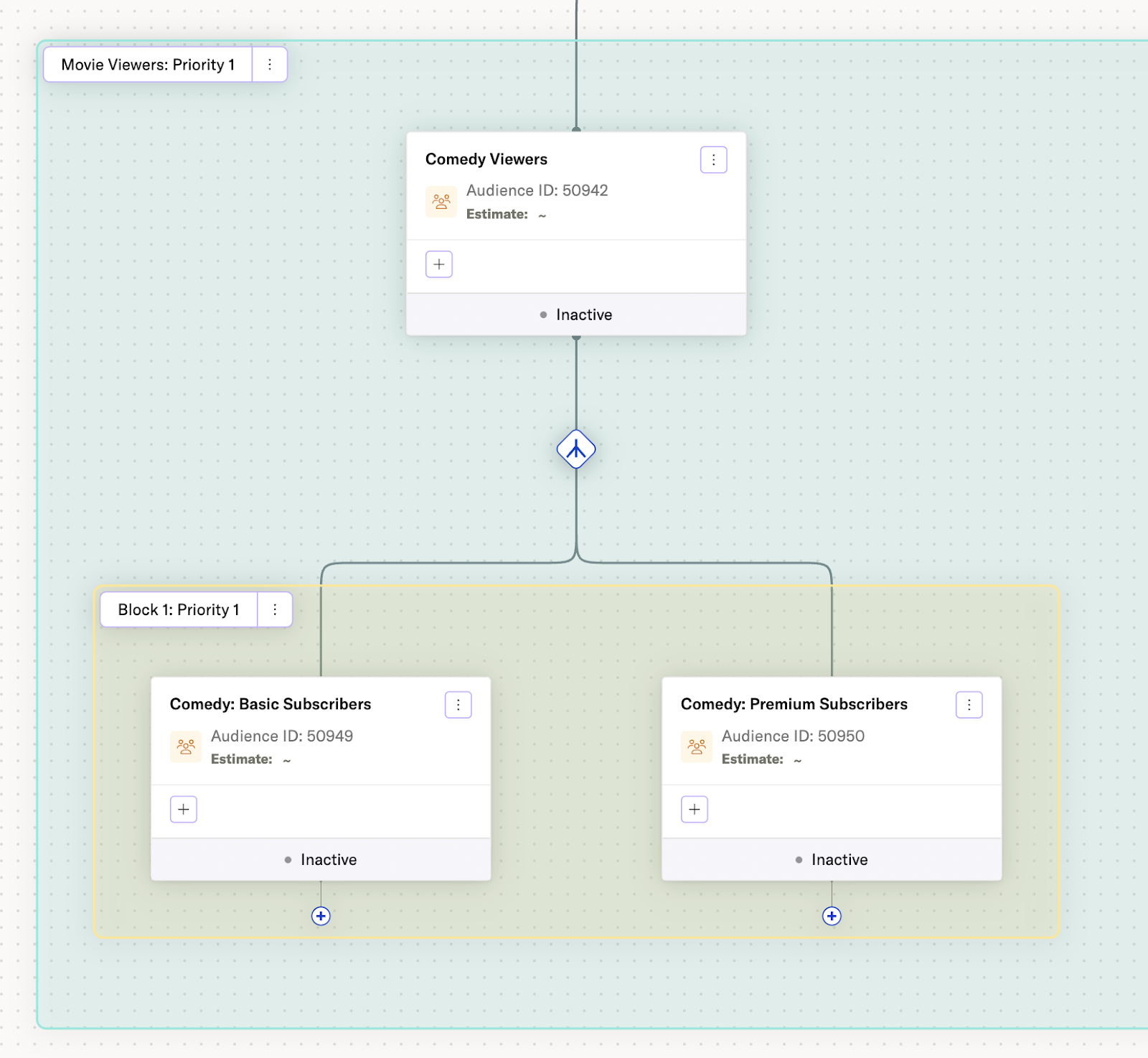
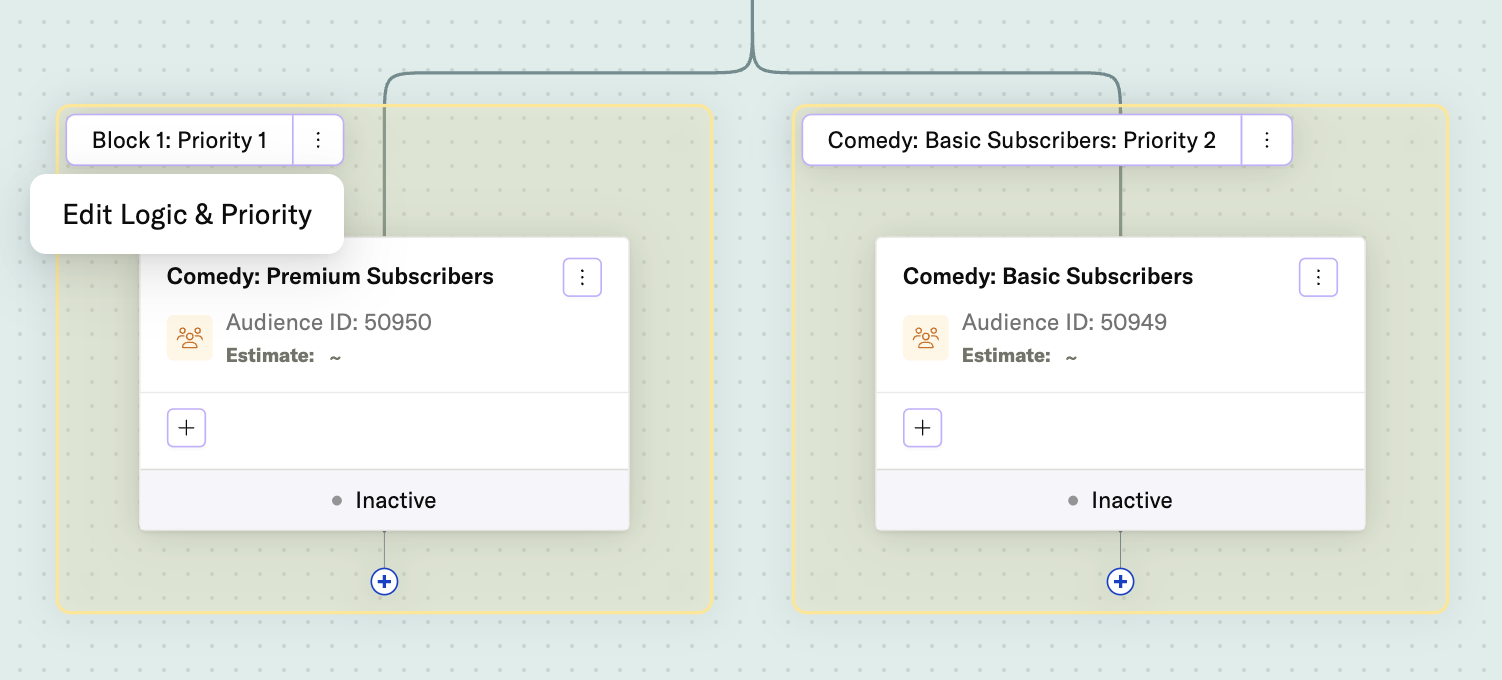
- Using the Add path button beneath the Comedy Viewers audience, create another audience for your premium subscribers. Note that both subscription tier audiences are contained in a new logic block called Block 1. To prevent overlap between these two audiences, we need to create a new logic block.
- Click the action menu icon on Comedy: Basic Subscribers, and select Move.
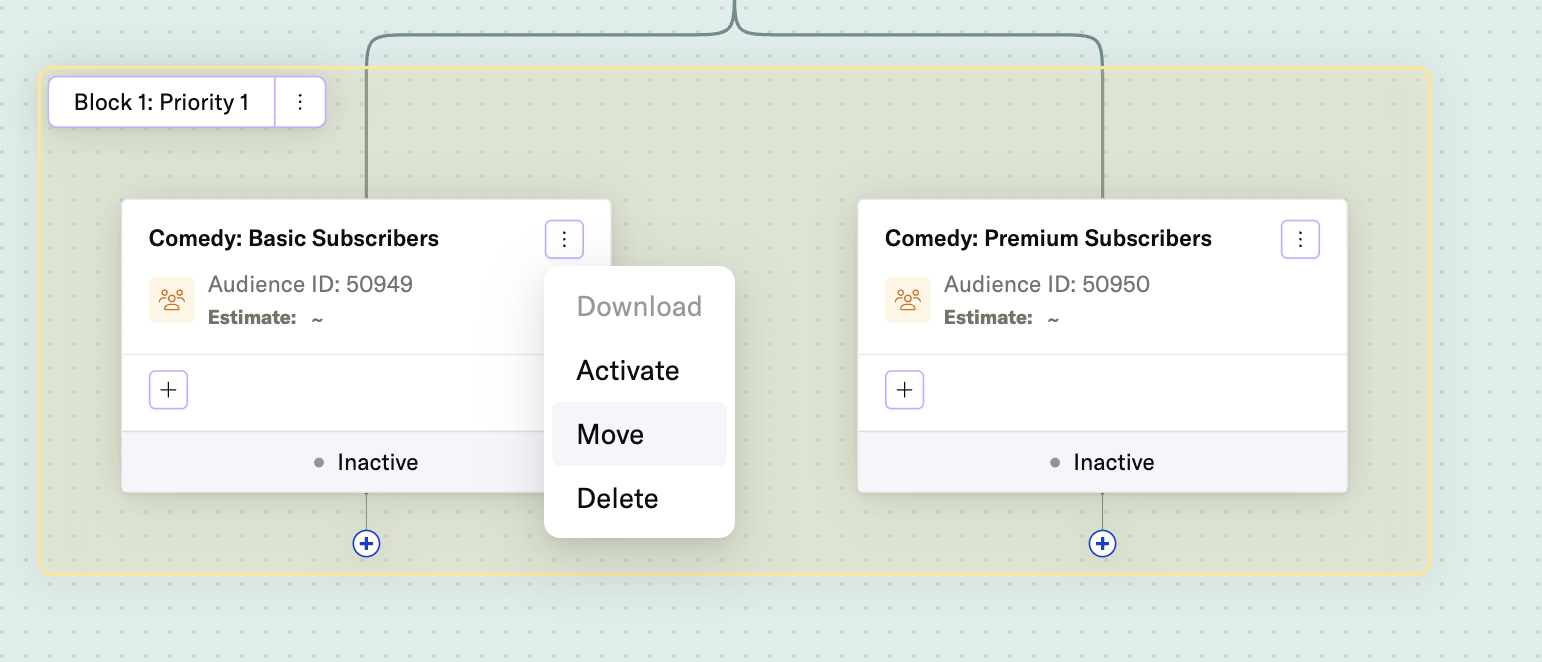
- This opens the Move Audience window where we can create a new logic block. Select Create New Logic Block and accept the suggested name: “Comedy: Basic Subscribers”.
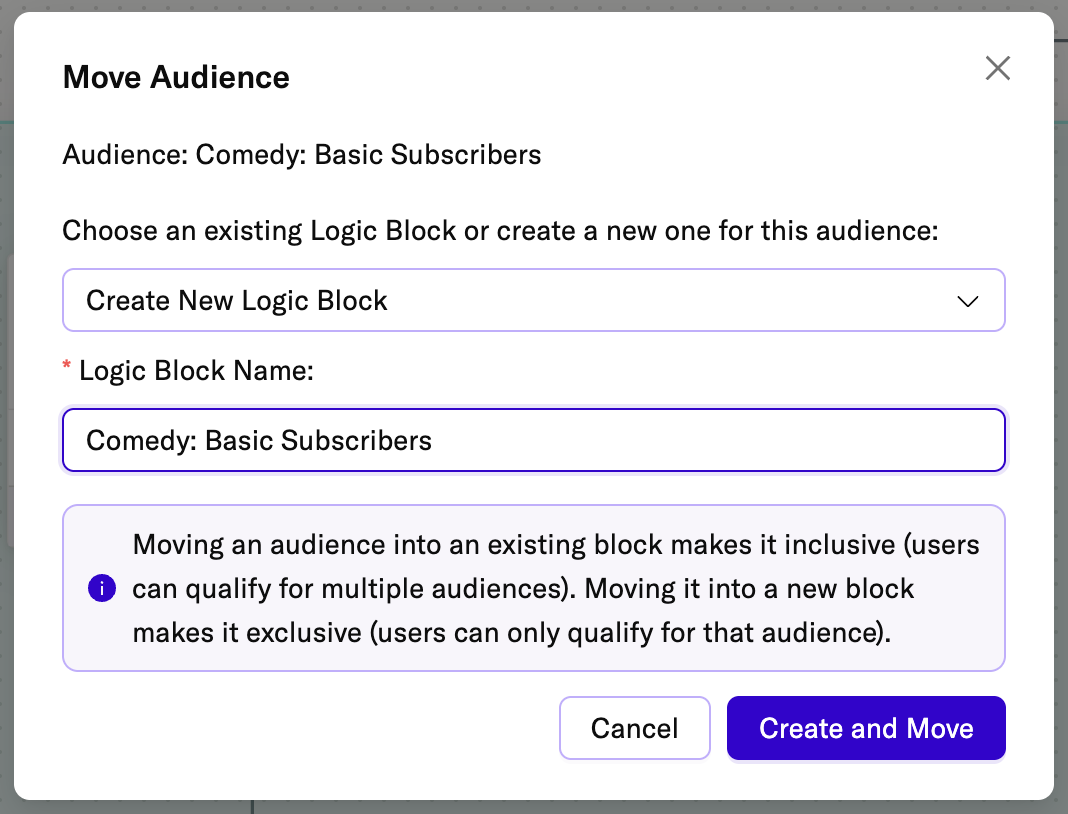
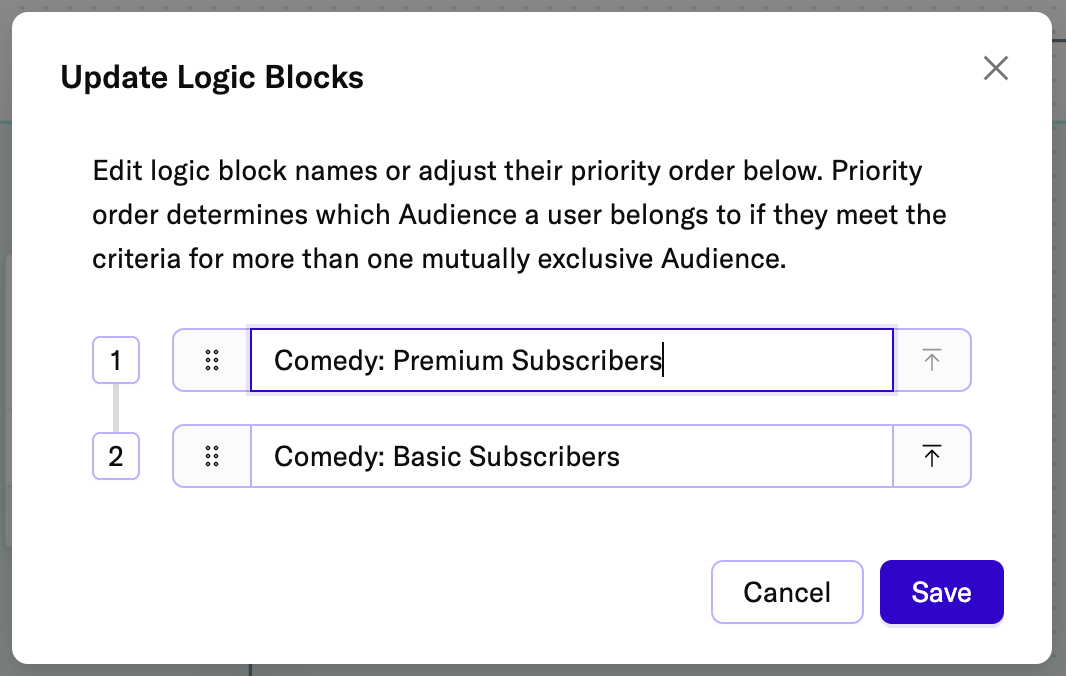
- Click Create and Move to create a new logic block named “Comedy: Basic Subscribers” and move your audience into this block. Now, you will see two logic blocks, one titled Block 1 and the new logic block titled “Comedy: Basic Subscribers”. We can rename Block 1 to something more descriptive by clicking the three-dot action menu icon next to the block title and clicking Edit Logic & Priority.
- In the Update Logic Blocks window, enter a more descriptive name for Block 1, like “Comedy: Premium Subscribers”. This window also allows you to modify the priority for your logic blocks. Since we only need two logic blocks to separate our viewers into subscription tiers, the block priority won’t impact our audiences. In more complex cases the block priority determines which block’s audiences a user is added to when they qualify for more than one, with higher priority blocks being assessed first.
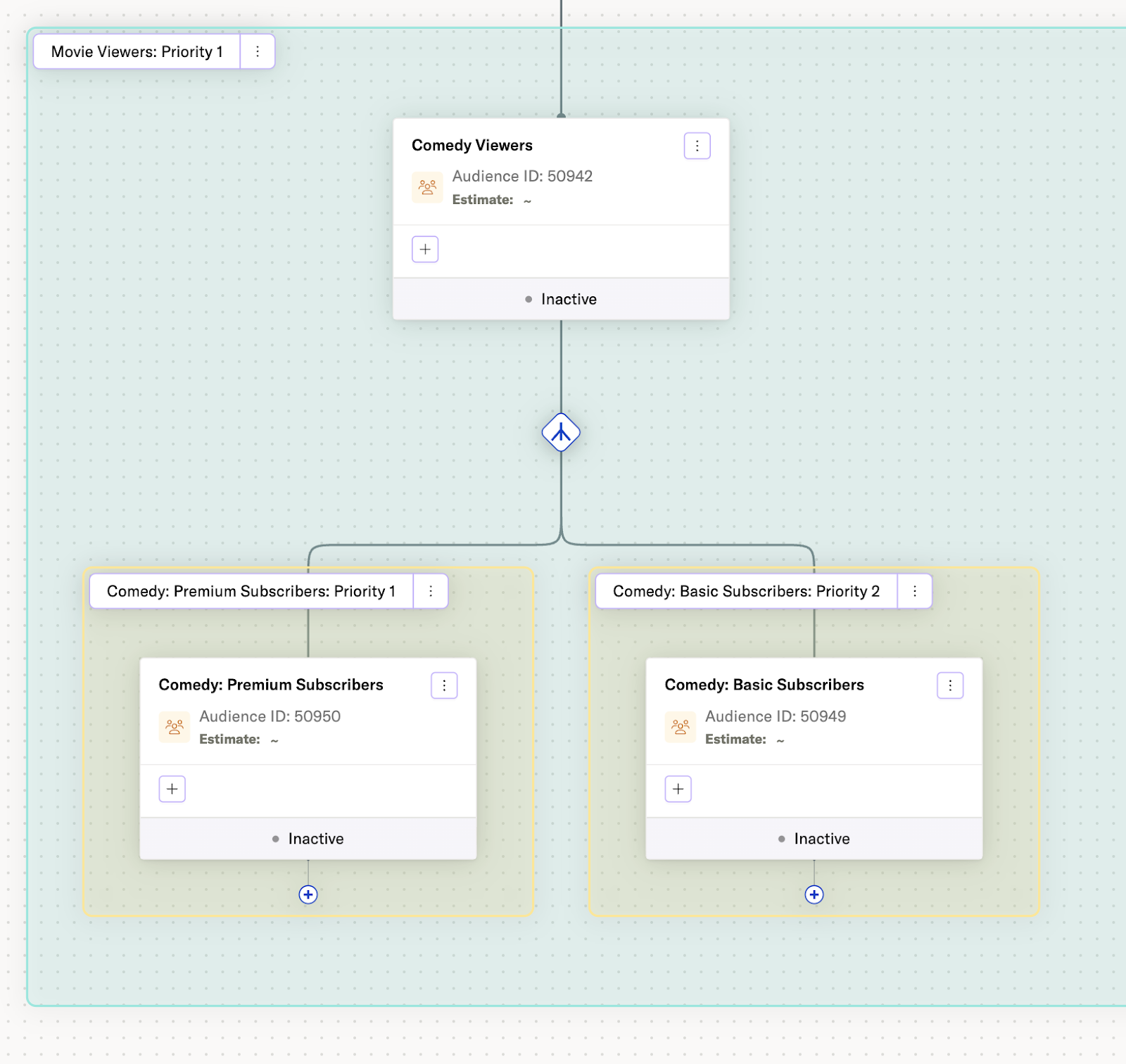
- Now, the Comedy Viewers audience has two child audiences: Comedy: Premium Subscribers and Comedy: Basic Subscribers. These two audiences are exclusive: members of Comedy Viewers will be separated into each audience according to their subscription, with no overlap between the two.
Repeat this process to create Premium and Basic Subscriber audiences for each of the remaining genres: Drama, Horror, and Romantic Comedy.
For each genre:
- Create two subscription tier audiences (Basic and Premium) as children of the genre audience
- Move one of them into a new logic block
- Rename the logic blocks appropriately
Your final structure should look like this:
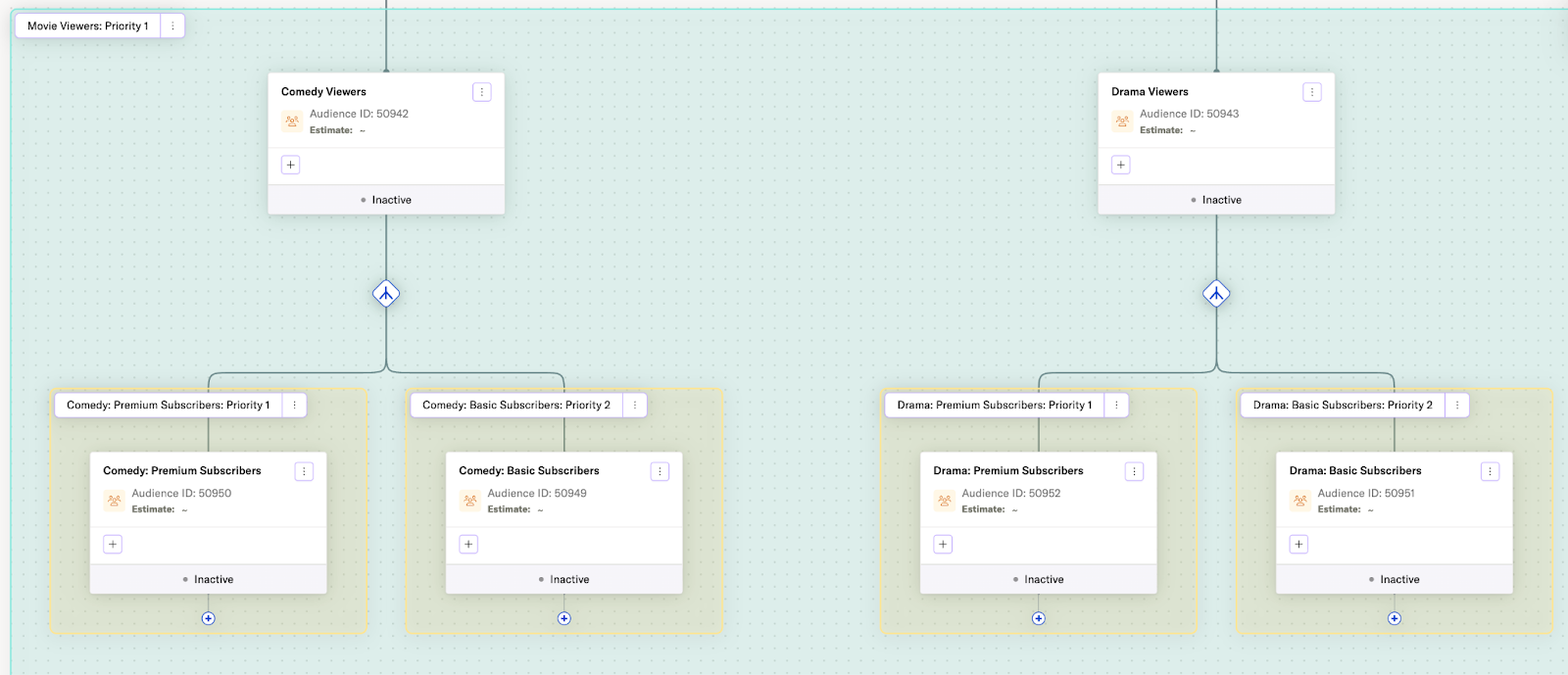
Understanding Exclusivity Between Logic Blocks
It’s important to remember that logic blocks are only exclusive relative to other sibling logic blocks under the same parent audience. In other words, Comedy: Premium Subscribers and Comedy: Basic Subscribers will never share users.
However, if a user has a basic subscription and watches both comedy and drama, they will appear in both the Comedy: Basic Subscribers and Drama: Basic Subscribers audiences.
Step 4: Validate your audience configuration
You can use Audience Preview to validate your audience configuration:
- Users who watch multiple genres should appear in the audience for each genre they watch, such as Comedy Viewers and Drama Viewers.
- Within a single genre, a viewer should only be added to either the Basic or Premium subscription audience, never both at the same time.
- A premium subscriber who watches multiple genres should appear in multiple Premium subscriber genre audiences, such as Comedy: Premium Subscribers and Drama: Premium Subscribers.
Additional Patterns
The genre + subscription tier pattern demonstrated in this example can be applied to many other scenarios:
Product Lines + Customer Segments
Create inclusive audiences for different product lines (Electronics, Home Goods, Apparel) with exclusive customer segments within each line (New Customers, VIP Customers, At-Risk Customers).
Use case: Send product-specific promotions while ensuring customers only receive messaging appropriate to their current lifecycle stage for each product line.
Geographic Regions + Offer Types
Create inclusive audiences for different geographic regions (Northeast, Southeast, Midwest) with exclusive offer types within each region (Standard Offer, Premium Offer, Limited-Time Offer).
Use case: Run region-specific campaigns while controlling which offer each user receives based on priority rules within their region.
Campaign Types + User Lifecycle Stages
Create inclusive audiences for different campaign types (Email Campaign, Push Campaign, In-App Campaign) with exclusive lifecycle stages within each type (Active, Dormant, Churned).
Use case: Run multiple campaign types simultaneously while ensuring users only receive messaging appropriate to their current lifecycle stage for each campaign type.
Troubleshooting
Users Appearing in Multiple Exclusive Audiences
If a user appears in multiple audiences that should be exclusive:
- Verify the audiences are in separate logic blocks under the same parent
- Check the block priority order—the user may qualify for multiple blocks and is being added to the highest priority one
- Confirm the parent audience is the same for both logic blocks
Users Not Appearing in Expected Audiences
If a user is missing from an expected audience:
- Verify the user meets all criteria for the audience
- Check if a higher-priority sibling logic block is capturing the user first
- Review the audience’s environment settings (Production vs. Development)
- Confirm the audience has been activated or calculated
Logic Block Not Appearing
If logic blocks are not visible in the Audience Group Editor:
- Ensure you have created at least two sibling audiences using the Add path button
- Confirm you are viewing the Audience Group Editor, not an individual Audience Builder
- Check that you are viewing an audience group, not a single audience from the Audiences landing page
Was this page helpful?
- Last Updated: April 6, 2026